

.jpeg)
Your Facebook Product Feed (also called a Meta Product Catalog) is the data source that powers all your catalog advertising on Facebook and Instagram. Are you running dynamic product ads for retargeting? Maybe prospecting catalog campaigns? Or even Advantage+ Shopping campaigns? Yes, your product feed determines what products get shown, to whom, and how they appear.
For e-commerce brands, catalog ads represent the majority of Meta ad spend. Often 60% or more. Why? Because catalog ads automatically surface the products that make the most sense for each person, based on what they’ve been browsing and what they’re into. In other words, it’s like giving everyone their own personalized shopping experience — but at scale.
Now, this guide is here to walk you through everything you need to know about creating, optimizing, and keeping a high-performing Facebook Product Feed running smoothly. Let’s jump in.
What is a Facebook Product Feed?
First things first: a Facebook Product Feed is basically a structured data file that holds all the details about the products you want to advertise across Meta’s platforms — Facebook, Instagram, Messenger, and Audience Network. That feed powers:
- Dynamic Product Ads (DPA): Retargeting campaigns that show people products they’ve already looked at
- Catalog Sales Campaigns: Prospecting campaigns that highlight your full product catalog
- Advantage+ Catalog Ads: Meta’s automated campaign type for catalog advertising
- Instagram Shopping: Shoppable posts and product tags
- Facebook Shops: Your storefront on Facebook and Instagram
Think of the product feed as the backbone of all these formats. It automatically pulls in product info, images, pricing, and availability so your ads feel personalized without you having to lift a finger.
How Facebook Product Feeds Work
Here’s the magic: unlike static ads (where you’d have to manually build every single variation), catalog ads lean on your product feed to spin up thousands of unique ads automatically. You set up a product catalog in Meta Commerce Manager, upload your feed, build catalog ad campaigns in Facebook Ads Manager, and then Meta’s algorithm takes over, showing the right products to the right people at the right time. Just like that. Ads update automatically when you update your product feed.
This automation is powerful. You can advertise hundreds or thousands of products without manually creating ads for each one. Sounds like a dream. However, the quality of your ads depends entirely on the quality of your product feed.
Setting Up Your Facebook Product Feed
Step 1: Create a Meta Commerce Manager Account
Before you can upload a product feed, you need access to Meta Commerce Manager:
- Go to Meta Commerce Manager
- Select your Business Account (or create one if needed)
- Navigate to "Catalog" in the left menu
- Click "Add Catalog" and choose "E-commerce" as the catalog type
- Complete the setup wizard
Step 2: Choose Your Feed Method
Meta offers several ways to create and maintain your product catalog:
Manual Upload: Upload a CSV, TSV, or XML file directly through Commerce Manager. Good for small catalogs (under 100 products) or testing.
Scheduled Feed: Host your feed file at a publicly accessible URL, and Meta automatically fetches updates on your schedule (hourly, daily, weekly). Recommended for medium to large catalogs.
Platform Integration: Connect your e-commerce platform (Shopify, WooCommerce, Magento, BigCommerce) for automatic product syncing.
Catalog API: Programmatically manage products via Meta's Marketing API for real-time inventory updates and custom automation.
Feed Management Platform: Use a dedicated tool to organize, enrich, and deploy feeds across multiple platforms. Marpipe's feed management platform offers a free solution for optimizing your product catalog across Meta and other platforms.
Step 3: Format Your Product Data
Your Facebook Product Feed must include specific attributes for each product:
Required Attributes:
- id : Unique product identifier (your SKU)
- title : Product name
- description : Detailed product information
- availability : in stock, out of stock, preorder, available for order, discontinued
- condition : new, refurbished, used
- price : Price with currency (e.g., "29.99 USD")
- link : URL to product page
- image_link : URL to main product image
- brand : Manufacturer or brand name
Highly Recommended Attributes:
- additional_image_link : Additional product photos (up to 20)
- sale_price : Discounted price if on sale
- sale_price_effective_date : When sale pricing starts/ends
- product_type : Your own category taxonomy
- google_product_category : Google's standard taxonomy (yes, Meta uses this too)
- custom_label_0-4 : Custom categorization for campaign segmentation
Optional but Valuable:
- color : Product color(s)
- size : Product size(s)
- age_group : adult, teen, kids, toddler, infant, newborn
- gender : male, female, unisex
- material : Primary material
- pattern : Product pattern or design
Step 4: Upload and Validate Your Feed
After preparing your feed:
- In Commerce Manager, go to your catalog
- Navigate to "Data Sources" > "Add Items"
- Choose your upload method (manual file, scheduled feed, or platform integration)
- Upload or provide the URL to your feed
- Map your feed columns to Meta's required attributes
- Review diagnostics for errors and warnings
- Fix any issues preventing products from being approved
Meta typically processes feeds within a few hours, but initial approval can take 24–48 hours.
Facebook Product Feed Optimization Best Practices
Craft Compelling Product Titles
Your product title appears big and centered in ads and it significantly impacts performance. Unlike search-based platforms (Google Shopping), Meta shows your products based on interest and behavior, so titles should be clear and appealing. Forget about keyword-stuffed titles.
Title Best Practices:
- Keep it concise. Aim for 50–80 characters (longer titles are not as good)
- Lead with the product name. Not the brand (unless brand is the main selling point)
- Include key attributes. Color, size, material, or key features
- Use natural language. Write for humans, not algorithms
- Avoid promotional language. "Free shipping!" or "50% OFF" (save it for ad copy)
Good Example: "Memory Foam Running Shoes - Black, Men's Size 10"
Poor Example: "SALE! FREE SHIP! Best Running Shoes Black Mens Athletic Sports Gym Sneakers"

Use High Quality, Consistent Images
Can’t stress this enough: product images are the most important element of your catalog ads. They're often the only thing people notice before deciding to click or scroll past.
Image Requirements:
- Minimum size: 500 x 500 pixels (1024 x 1024 or larger recommended)
- Format: JPG or PNG (PNG if transparency needed)
- Aspect ratio: Square (1–1) works best, but other ratios supported
- File size: Under 8 MB
- Background: Clean, consistent backgrounds improve visual appeal
Image Best Practices:
- Show the actual product, not just lifestyle imagery
- Use professional, well-lit photography
- Keep backgrounds consistent across products (white or neutral performs great)
- Include multiple angles with additional_image_link
- You can always test white background vs. lifestyle imagery to see what converts better
- Ensure products fill most of the frame without looking cramped
Segment Products with Custom Labels
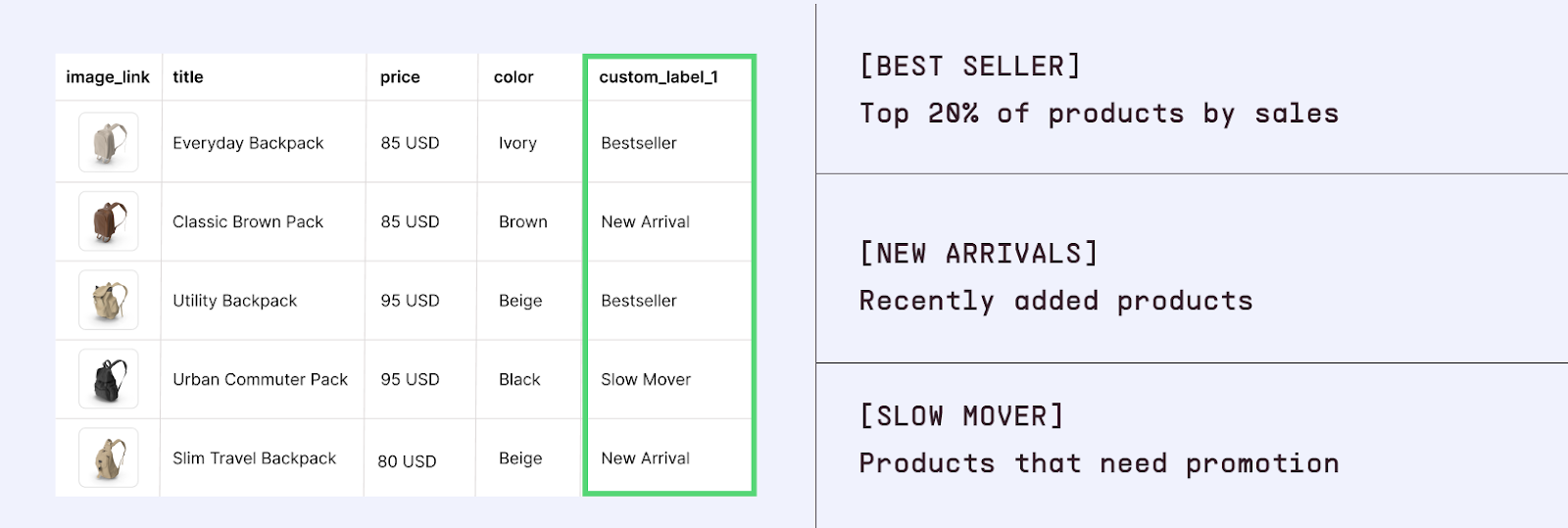
Meta gives five custom label fields (custom_label_0 through custom_label_4) that you can use to separate products in your campaigns. This is one of the best optimization techniques for catalog ads.
Strategic Custom Label Uses:
Margin Segmentation:
- custom_label_0 = "High Margin" : Products with 50%+ margins
- custom_label_0 = "Medium Margin" : Products with 30–50% margins
- custom_label_0 = "Low Margin" : Products under 30% margins
This lets you bid heavily on profitable products and reduce spend on low-margin items.
Seasonal Segmentation:
- custom_label_1 = "Holiday" : Holiday-specific products
- custom_label_1 = "Summer" : Summer seasonal products
- custom_label_1 = "Year-Round" : Evergreen products
Adjust budgets regularly based on these same labels.
Performance Segmentation:
- custom_label_2 = "Best Seller" : Top 20% of products by sales
- custom_label_2 = "New Arrival" : Recently added products
- custom_label_2 = "Slow Mover" : Products that need promotion
Inventory Segmentation:
- custom_label_3 = "Overstock" : Excess inventory to push
- custom_label_3 = "Limited" : Low stock items
- custom_label_3 = "Plenty" : Well-stocked items
These labels enable granular campaign optimization, similar to building a strong product feed stack for other targeting strategies.
Keep Your Feed Updated
Here’s the truth: stale product data kills performance:
- Price mismatches: Showing the wrong price creates a poor user experience and wastes budget
- Out-of-stock products: Advertising unavailable products frustrates customers and lowers ROAS
- Outdated images: Old product photos undermine brand perception
Update frequency best practices:
- Minimum: Daily updates for inventory and pricing
- Recommended: Multiple updates per day (every 4–6 hours) if you have dynamic inventory
- Ideal: Real-time updates via API for prices, availability, and new products
Creating High-Performing Catalog Ads
Having a well-structured product feed is essential, but how your products appear in ads matters just as much. This is where many brands miss a huge opportunity.
The Problem with "Raw" Catalog Ads
Most brands run what we call "raw catalog ads" showing products on plain white backgrounds with auto-generated copy pulled directly from the feed. These ads work… but they kinda don't.
- Looks generic and boring
- Brand identity? Nowhere to be found.
- Blend in with competitors
- Underperform their potential
The Power of Enriched Catalog Ads
"Enriched" catalog ads use branded templates to transform your product feed into beautiful, on-brand advertisements. Instead of plain product photos, your ads can include:
- Branded backgrounds and design elements
- Dynamic text overlays (prices, discounts, product names)
- Multiple product images in creative layouts
- Seasonal or promotional variations
- Consistent brand expression across all products
The best part? Enriched catalog ads apply to your entire feed automatically, so you can create one template and it will generate thousands of unique ads, one for each product. Sounds good, huh?
Marpipe specializes in enriched catalog ads, giving brands complete creative control over their catalog advertising. Brands using enriched catalogs see an average 53% increase in ROAS compared to raw catalog ads.
Common Facebook Product Feed Errors and Fixes
Error: "Missing Availability"
Cause: Products don't include the availability attribute.
Fix: Add the availability field to every product with one of these values: in stock, out of stock, preorder, available for order, or discontinued.
Error: "Price Formatting Issue"
Cause: Price doesn't match Meta's required format.
Fix: Use format XX.XX CUR (e.g., "29.99 USD"). Don't include currency symbols, commas, or other characters. Price must include exactly two decimal places.
Error: "Image Can't Be Downloaded"
Cause: Meta can't access your product images.
Fix:
- Verify image URLs return a 200 status code
- Use HTTPS (not HTTP)
- Ensure images aren't behind authentication
- Check images load in an incognito browser
- Verify file format is JPG or PNG
Warning: "Landing Page Not Available"
Cause: Product URL doesn't load properly or redirects incorrectly.
Fix:
- Test URLs in an incognito browser
- Remove any login requirements or geographic restrictions
- Fix redirect chains
- Ensure landing pages load quickly (under 3 seconds)
Error: "Value of 'id' Is Not Unique"
Cause: Multiple products in your feed share the same ID.
Fix: Each product must have a completely unique identifier. If you have product variants (different sizes/colors), each variant needs its own unique ID.
Advanced Catalog Strategies
Product Sets for Precise Targeting
Product Sets let you group products from your catalog for specific campaigns. You can create sets based on:
- Product attributes (category, price range, brand)
- Custom labels
- Manual product selection
Example Strategy:
- Set 1: "High Margin Best Sellers" : Your most profitable products for aggressive spending
- Set 2: "New Arrivals" : Recently added products for awareness campaigns
- Set 3: "Clearance Items" : Overstock products with heavy discounting
Each set gets its own campaign with tailored creative, bidding, and audience strategies.
Dynamic Ads for Broad Audiences (DABA)
Most brands only use catalog ads for retargeting. But Meta's Dynamic Ads for Broad Audiences (DABA) lets you show your catalog to new customers based on their interests and behaviors.
DABA campaigns:
- Reach cold audiences who've never visited your site
- Use Meta's algorithm to show the most relevant products
- Scale beyond retargeting audiences
- Often deliver strong ROAS for well-structured catalogs
Advantage+ Catalog Ads
Meta's latest automated campaign type, Advantage+ Catalog Ads, uses AI to optimize everything (audience, placement, creative, and bidding) automatically.
These campaigns:
- Combine retargeting and prospecting in one campaign
- Automatically test different product combinations
- Optimize delivery across Facebook, Instagram, Messenger, and Audience Network
- Work best with clean, well-organized product feeds
Multi-Platform Product Feed Strategy
Smart e-commerce brands don't just advertise on Meta. You're likely also running:
Each platform has different feed requirements and optimization strategies. Managing separate feeds manually is time-consuming and error-prone.
The Solution: Master Feed Management
Build one comprehensive product feed, then use feed management tools to:
- Format data appropriately for each platform
- Apply platform-specific optimizations automatically
- Sync inventory and pricing changes across all platforms
- Test different attributes without rebuilding feeds
- Track multi-platform performance
Marpipe's feed management platform (which is 100% free) makes this simple by letting you organize your products once, then deploy to Meta, Google, TikTok, Pinterest, and other platforms with platform-optimized formatting.
Learn more about product feeds for other platforms: Check out our guides on Shopify Product Feed, WooCommerce Product Feed, Instagram Product Feed, and Google Merchant Center Feed.
Frequently Asked Questions
So, what’s the difference between a Facebook Product Feed and a product catalog?
Think of the catalog as the “container” inside Meta Commerce Manager. It’s where all your products live. The feed is just the file, CSV, XML, whatever, that holds the product data. Upload the feed, and boom, your catalog gets populated.
Can I just reuse my Google Shopping Feed for Facebook?
Yep, Meta will accept it. But here’s the catch: Google feeds are built for search, while Meta is all about discovery. So you’ll want to tweak things, shorter, discovery-friendly titles, square images that pop in the feed, and Meta-specific attributes like custom labels. Honestly, the easiest way is to use a feed management tool so you can optimize once and push everywhere.
How often should I update my feed?
At least once a day. If your inventory moves fast, prices change often, or you run flash sales, you’ll want to refresh every few hours, or better yet, hook into the API for real-time updates. Nothing kills trust faster than an ad showing a product that’s sold out or priced wrong.
Why aren’t all my products showing up in ads?
Usually it’s something small but critical: missing attributes, wrong availability status, funky price formatting, broken image links, or the product isn’t in the Product Set you’re targeting. Sometimes it’s just budget, not enough spend to show everything. The Diagnostics tab in Commerce Manager is your best friend here; it’ll tell you exactly what’s off.
Should I keep one big catalog or split into multiple?
For most brands, one big catalog is the way to go. You can slice and dice with Product Sets for different campaigns. Multiple catalogs only make sense if you’re running totally separate businesses, different sites, brands, currencies, the works.
Transform Your Product Feed Into High Performing Catalog Ads
A well-structured Facebook Product Feed is essential, but it's only the foundation. To maximize catalog ad performance, you need to transform your product data into beautiful, branded ads that stand out in the feed and drive conversions.
Marpipe helps e-commerce brands take full creative control of their catalog advertising:
- Organize your product catalog with our 100% free feed management platform
- Enrich your product data with AI-powered optimization
- Create branded catalog ad templates that automatically apply to your entire catalog
- Scale across platforms including Meta, Google, TikTok, Pinterest, and more
- Test creative variations to identify what drives the best ROAS
Our customers see an average 53% increase in ROAS compared to standard catalog ads by using enriched catalog templates that make their products look amazing.
Ready to upgrade your Facebook catalog ads? Explore Marpipe's Enriched Catalogs or schedule a demo to see how we help brands maximize catalog advertising performance.