

Pinterest is a place people go for ideas and inspiration, and a lot of that planning turns into buying. That mix of discovery and intent is what makes it worth selling on, but none of it works until your catalog is on the platform in a format Pinterest can read. That job belongs to your Pinterest product feed. It's a structured file that turns your inventory into shoppable product Pins and gives your shopping ads something to promote.
This guide walks what is Pinterest product feed, what you need in place before you build one, the fields Pinterest requires, the three ways to connect your feed, and how to optimize it so your products reach the right shoppers. Whether you are listing your catalog for the first time or cleaning up a feed that has gone stale, this guide can help.
What is a Pinterest Product Feed?
A Pinterest product feed is the file that tells Pinterest what you sell. Each row is one product, and each column holds a detail about it such as, the title, description, price, availability, image, and the link back to your site. You'll also see it called a data feed, a data source, or a product catalogue, but they all point to the same thing: a structured list of your inventory that Pinterest can read.
That file does more than store your product data. Once you connect it, Pinterest turns each row into a product Pin, which is a shoppable Pin that carries your image, price, and a link straight to the product page. Those Product Pins are what show up when someone searches or browses a shopping surface, and they're also the inventory your shopping ads pull from.
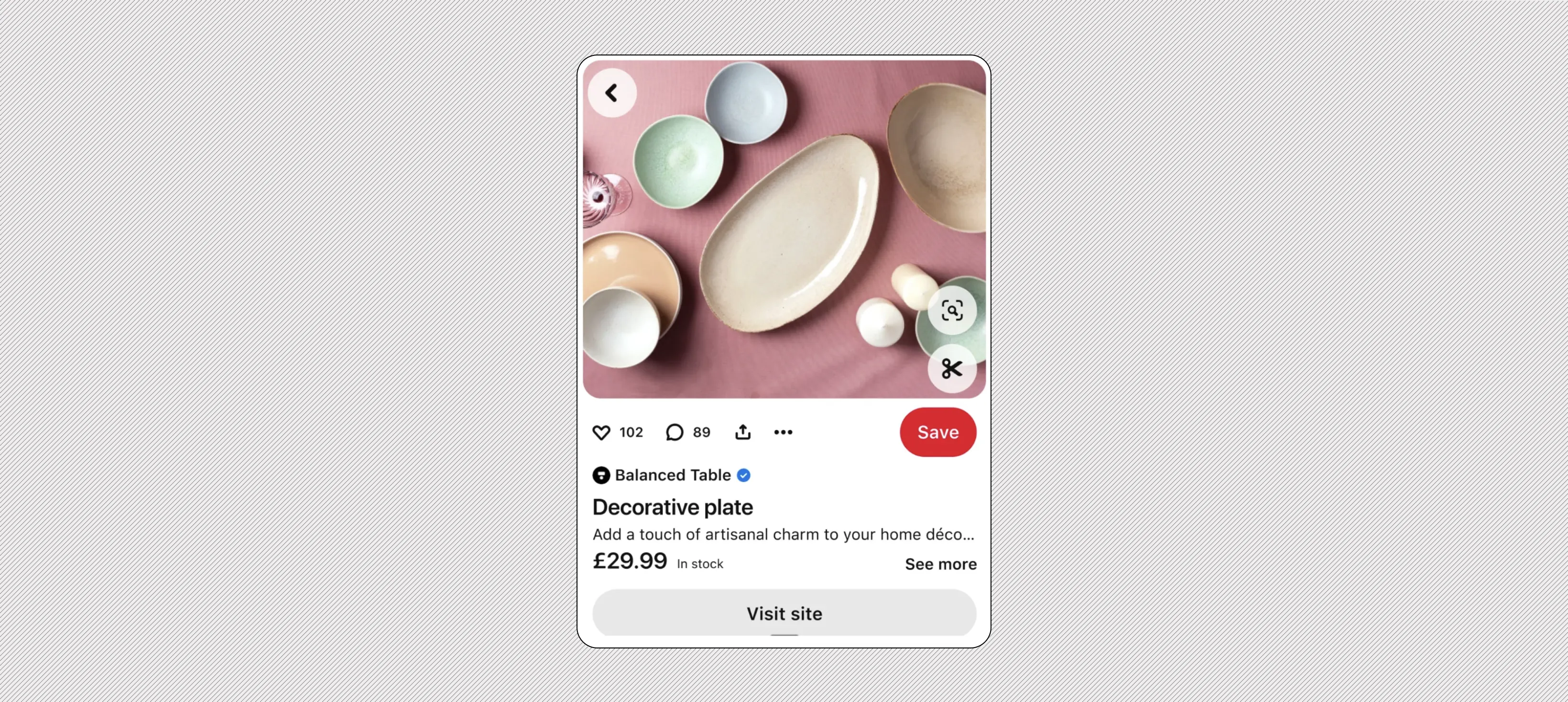
Source: Pinterest | Product Pins
Pinterest reads the fields you provide to decide who sees a product, where it appears, and how it's described on the Pin itself. A feed with a vague title and one attribute gives the system almost nothing to work with. A detailed one with clear title, specific description, full category, accurate price, etc. gives it the signals it needs to match your products to the right shoppers.
So before any campaign setup, the feed is the foundation. Get it complete and accurate first, because every product Pin and every shopping ad downstream is only as good as the data you feed in.
What you need before you start
Setting up a Pinterest product feed takes a few accounts and settings to be in place first. Get these sorted before you touch the feed itself, because a missing one will stall the whole setup.
Here's the checklist:
- A Pinterest business account. Catalogues and shopping ads only work on a business account, so convert or create one if you're still on a personal profile.
- A claimed website. Claim the domain your products link to. This verifies you own the store and connects your site activity back to your account.
- Merchant eligibility. Pinterest reviews catalogues against its merchant guidelines before they go live. Check that your products and store meet those requirements so your feed isn't rejected at review.
- The Pinterest tag installed. The tag tracks what shoppers do after they click, which lets you measure conversions and optimize shopping ads later. Install it now rather than scrambling for data after launch.
- Your product data ready. This is the feed file itself, and it's worth getting right the first time.
Your feed is a list of products with a column for each detail, and some columns are mandatory while others are optional but genuinely worth filling in. Treat the whole list as one set rather than doing the minimum, because the optional fields are often the ones that sharpen targeting and make your Pins more useful to shoppers.
At minimum, every product needs (required):
- ID: a unique identifier for the product that stays consistent over time.
- Title: the product name, ideally with the details a shopper would search for.
- Description: what the product is, written for both people and Pinterest's matching.
- Product link: the URL of the product page where someone can buy it.
- Image link: the URL of a clean, high quality product image.
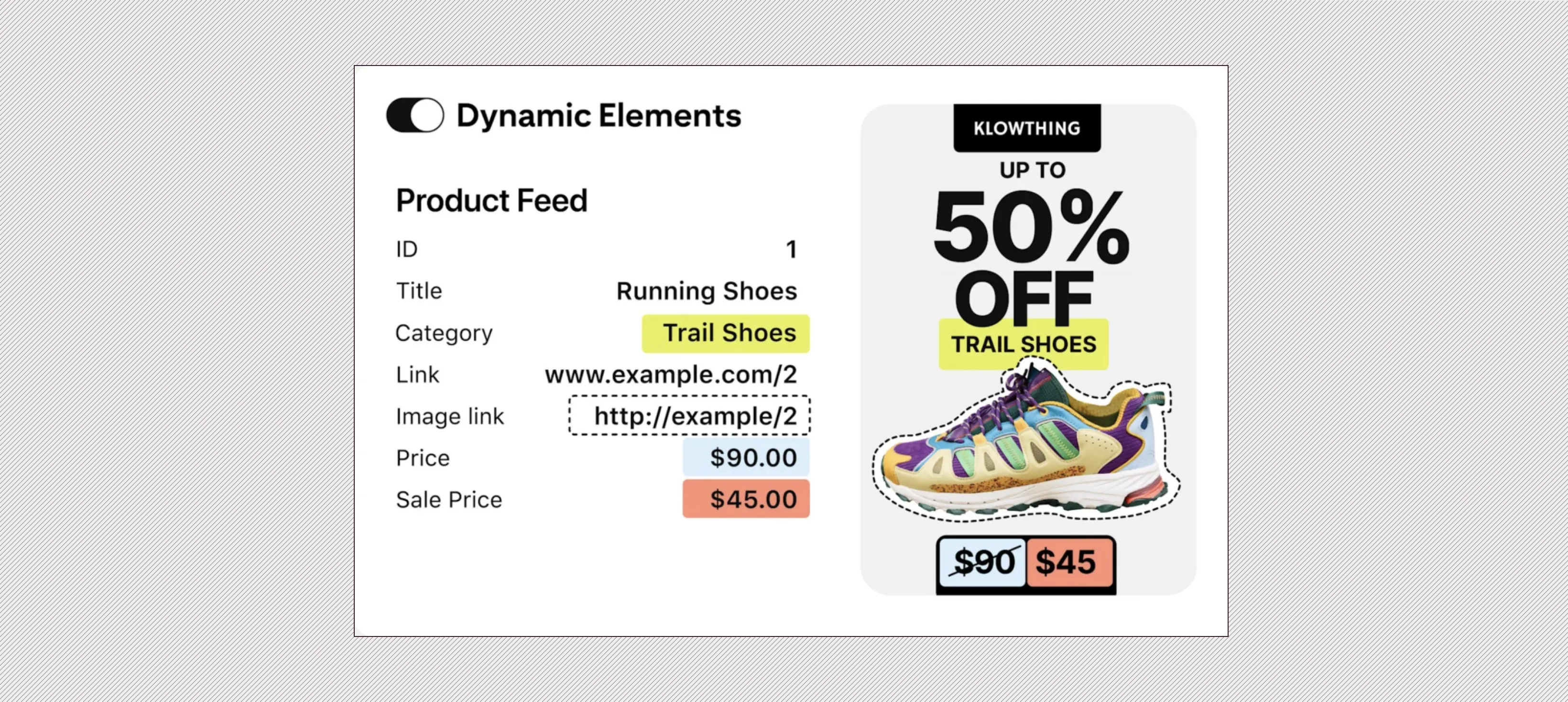
Source: Pinterest
- Price: the current price, kept accurate.
- Availability: whether the item is in stock.
- Brand: useful for branded search and matching.
- Item group ID (required only if a product has variants like size or color): the shared parent ID that ties those variants together.
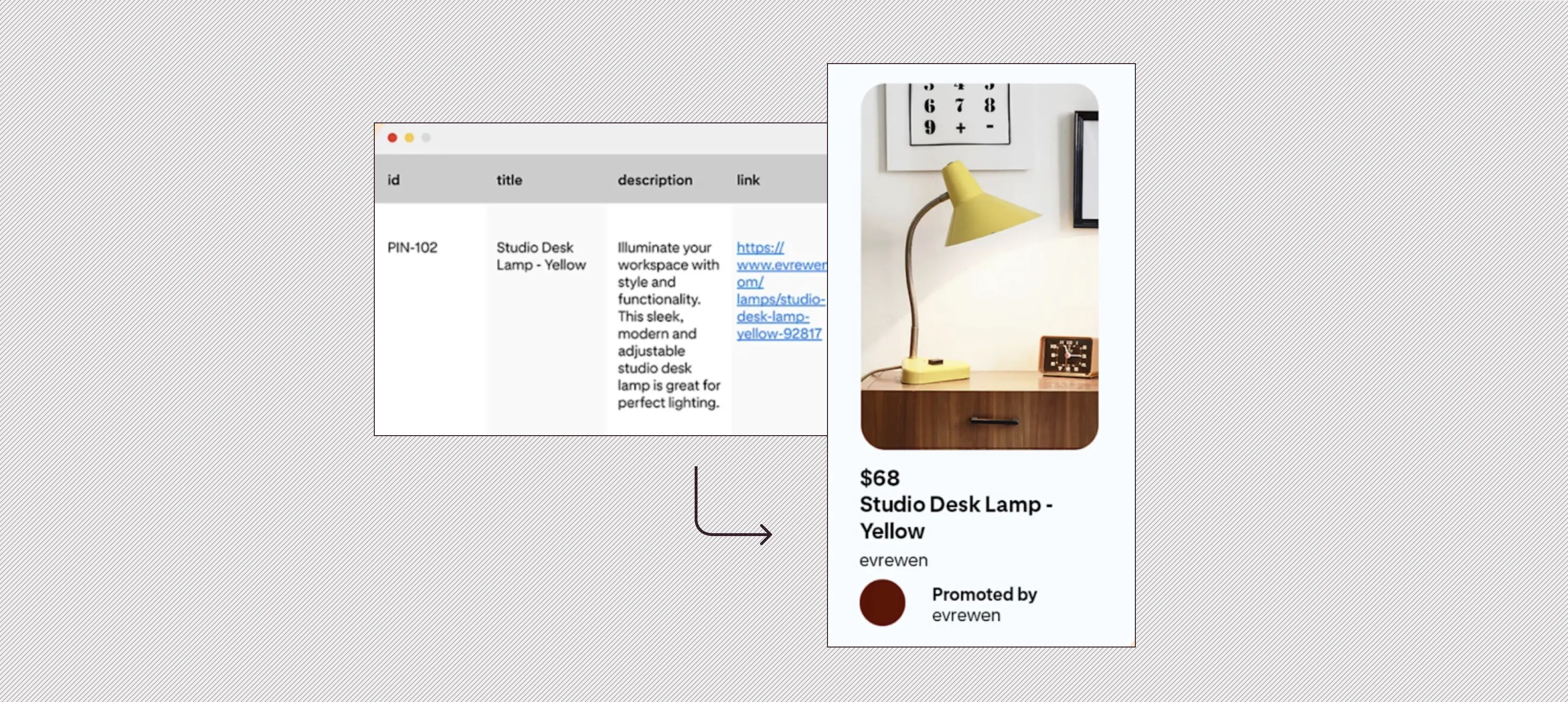
Source: Pinterest
Then add as many of these as you can (optional fields):
- Product category and full taxonomy: helps Pinterest place your item in the right shopping context.
- GTIN or MPN: standard product identifiers that improve how your items are recognised.
- Sale price: shows discounts and can lift interest.
- Colour, size, and variants: lets shoppers find the exact version they want.
- Shipping details and ratings: both build confidence and have been linked to higher checkout rates.
How to set up your feed
There are 3 ways to connect a feed to Pinterest. Pick the one that matches the size of your catalogue and how your store is already set up.
Option 1: Connect a data feed manually
This is the most direct route and works well if you can export a product file from your store.
- Create your feed file. Build a file that lists your products and their attributes, with one product per row. Pinterest accepts CSV, TSV, and XML files, as well as Google Sheets. Save it as UTF-8, or Pinterest may reject it.
- Upload it to your catalogue. In the catalogues section of your account, add the file as a data source. Pinterest reads it and turns each row into a product Pin.
- Set a schedule. Host the file at an accessible URL (FTP/SFTP or HTTP/HTTPS) and point Pinterest at it so it pulls updates automatically, rather than re-uploading by hand every time prices or stock change.
Option 2: Automate through your ecommerce platform
If you run your store on a platform like Shopify, you can skip the manual file work. Pinterest integrates with popular ecommerce and feed management tools, including Shopify and Feedonomics, so your catalogue syncs over without you exporting anything. Once you submit through the integration, Pinterest reviews the catalogue against its merchant guidelines and publishes it. This is usually the lowest maintenance option because product changes in your store flow through on their own.
Option 3: Use the API
For large or frequently changing catalogues, the Pinterest API gives you the most control. It suits brands with thousands of products, custom inventory systems, or a need to push updates more often than a scheduled file pull allows. It takes developer time to set up, so it's the right call when a manual file or a standard integration can't keep pace with your catalogue.
Ingestion and refresh process
Whichever route you choose, Pinterest re-reads your hosted feed daily and flags any errors it finds. That cadence matters for two reasons:
- Price and availability changes reach Pinterest within a day as long as your source file stays current.
- You should check your feed regularly for errors rather than assuming a successful first upload keeps working forever. A feed that ingested cleanly last month can break when a product URL changes or an image goes missing.
How to optimize your product feed
A connected feed gets your products live, but optimization is what makes them perform. Pinterest reads the fields you provide to decide who sees each product and how it shows up, so the more useful detail you give, the better the matching. These four areas give you the most return for the effort.
Write titles and descriptions the way shoppers search
Your title and description are doing double duty: they tell a person what the product is, and they tell Pinterest who to show it to. Vague text limits both. The fix is to write in the words people actually type when they look for something like yours, and to combine broad terms with specific ones.
Here's the difference:
Weak title: Ceramic Mug
Stronger title: Handmade Stoneware Coffee Mug, 350ml, Matte Blue
The second version gives Pinterest material to work with (material, type, size, colour) and helps your product surface for both a broad search like "coffee mug" and a specific one like "blue stoneware mug." Do the same in the description: cover the details a buyer would care about rather than repeating the title.
Use the full product category, not just the top level
Pinterest places your products partly based on how you categorize them. A single broad category tells it very little, so build out the full path from general to specific. The deeper the categorization, the more shopping contexts your product can appear in.
For a pair of headphones, the difference looks like this:
- Too shallow: Electronics
- Better: Electronics > Audio
- Right: Electronics > Audio > Headphones > Over-Ear Headphones
That last version maps your product into the exact aisle a shopper is browsing, instead of leaving it floating in a category with thousands of unrelated items.
Keep your product groups clean
Product groups are the behind-the-scenes collections Pinterest uses to decide what to show and where. Think of them as the aisles in your store. If everything is dumped together, nothing gets found, so organize them the way you would lay out a shop.
A few rules that keep groups working:
- Group products by something meaningful, like style, use case, or price range.
- Put each product in a group only once. Stacking the same item across many groups muddies your reporting and the shopping experience.
- Mirror how you already organize your site, so the structure stays consistent and easy to maintain.
Use product images that earn the click
Strong images do more work than any other single field.
Pinterest is a visual surface, so a clear, well-lit photo on a clean background is often what decides whether someone stops scrolling. A few things to get right:
- Use a high quality main image, at least 1000x1500 pixels.
- Show the actual product clearly, with no placeholder or template graphics.
- Avoid heavy text overlays or watermarks on the main image.
For example, a desk lamp shot straight-on against a plain backdrop reads instantly, while the same lamp photographed in a cluttered room forces the viewer to hunt for it. The first one gets the click.
Choose Marpipe to make catalog ads that convert
A product feed is just data. What a shopper actually responds to is the creative built on top of it, and that is true on every shopping surface, including the Meta catalog ads your same product feed powers.
This is where most catalog campaigns leave performance on the table. Standard dynamic product ads pull the bare image straight from your feed, so every brand ends up looking more or less the same. The feed gets your products in front of people, but plain product shots rarely give them a reason to choose you over the next listing.
Marpipe works on that gap. It is a creative testing platform for catalog and Advantage+ ads that lets you design branded templates and apply them across your entire product catalog, then test which versions actually perform.
- Apply designed, on-brand templates across thousands of products at once, so your catalog ads look intentional instead of auto-generated.
- Generate and test many creative variations per product rather than shipping a single ad and hoping.
- Use performance data to keep your strongest creative in rotation as you scale.
Book a demo with Marpipe to turn your product catalog into scroll-stopping ads that actually sell.
What file formats does Pinterest accept for a product feed?
Pinterest accepts CSV, TSV, and XML files, plus Google Sheets. You need to save the file with UTF-8 encoding, or Pinterest may reject it at upload. Pick whichever format your store or feed tool already exports cleanly, since all of them work the same once they're read.
What fields are required in a Pinterest product feed?
Every product needs an ID, title, description, product link, image link, price, availability, and brand. If a product has variants like size or colour, you also need an item group ID that ties those variants to a shared parent. Optional fields like category, GTIN or MPN, sale price, shipping, and ratings aren't mandatory, but filling them in sharpens targeting.
How often does Pinterest update my feed?
Pinterest re-reads your hosted feed once a day and flags any errors it finds. As long as your source file stays current, price and availability changes reach Pinterest within about a day. You should still check the feed regularly, because a feed that uploaded cleanly before can break when a product URL changes or an image goes missing.
What's the difference between a product feed and a Product Pin?
The product feed is the structured file that lists everything you sell, with one product per row. Product Pins are what Pinterest builds from that file, each one carrying your image, price, and a link to the product page. One feed row becomes one Product Pin, and those Pins are the inventory your shopping ads pull from.
What image size does Pinterest recommend for product feeds?
Use a high-quality main image that's at least 1000x1500 pixels. Show the actual product clearly on a clean background, with no placeholder or template graphics. Avoid heavy text overlays and watermarks on the main image, since the photo is often what decides whether someone clicks.
Why would my Pinterest feed get rejected?
The most common causes are wrong file encoding (use UTF-8), missing required fields, an unclaimed website, or products that don't meet Pinterest's merchant guidelines. Pinterest reviews every catalogue against those guidelines before it goes live. Claiming your domain and installing the Pinterest tag before launch clears up most of these issues ahead of time.