


A streaming service doesn't have one product — it has thousands. Every title in your library is a reason for someone to subscribe, keep watching, or come back. Meta catalog ads let you promote those titles dynamically: surface new releases, retarget a show someone browsed, and rotate your whole catalog into ads automatically as it changes.
You already have poster and key art, so this isn't about creating images from nothing — it's about turning raw artwork into branded, on-message creative at scale: a "New Season" badge, a critic score, the maturity rating, your service logo, sized for every placement. That treatment layer is what a tool like Marpipe adds on top of your title feed, across the entire library, refreshed as fast as your catalog moves. This guide covers the two halves of getting there: what fields your feed should contain, and how to upload it to Meta.

Which Meta catalog type do streaming services use?
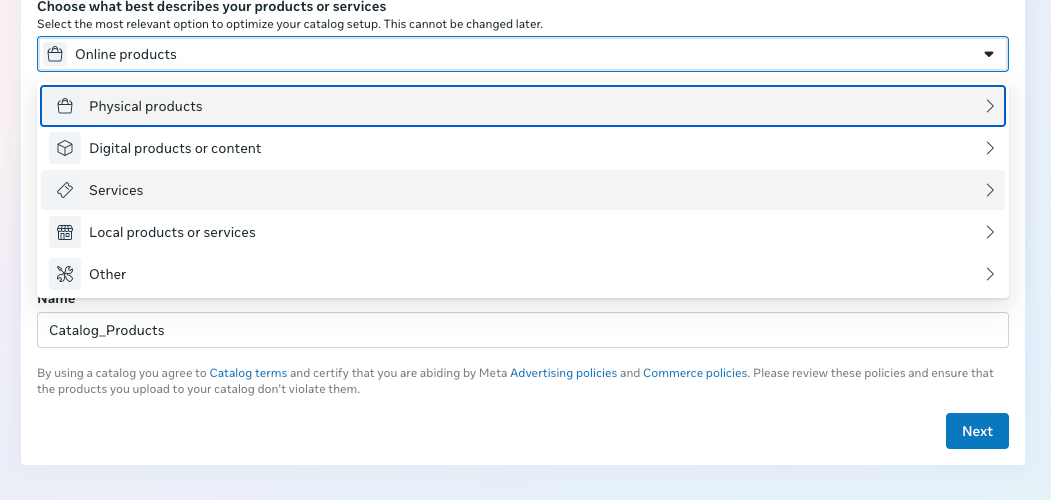
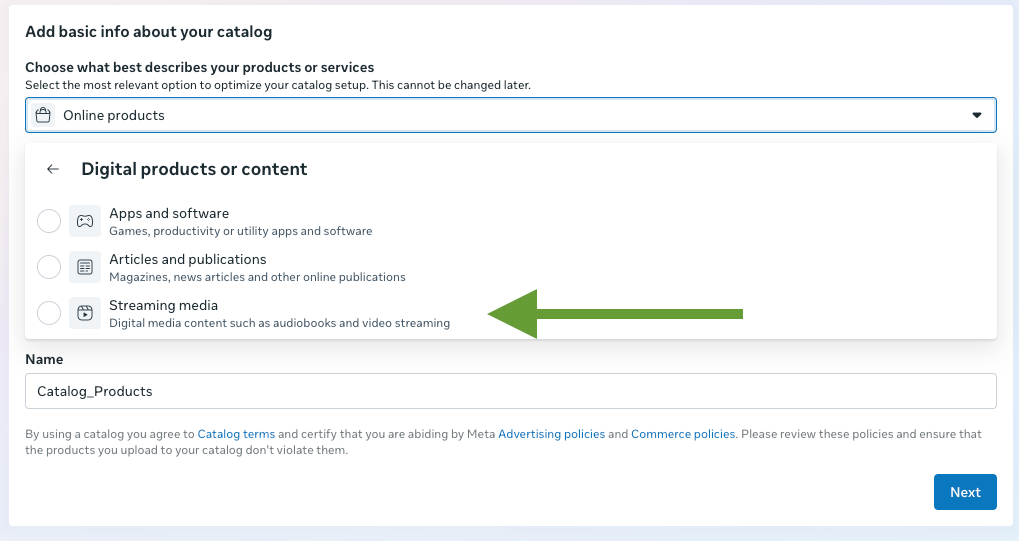
Streaming services use Meta's Media Titles catalog type. Each row in your feed is a single title — a movie, series, album, or audiobook. When you create the catalog, you'll choose it under Digital products or content → Streaming media, which Meta describes as "Digital media content such as audiobooks and video streaming." This choice cannot be changed after the catalog is created, so select it deliberately.
Promoting the app vs. the content? If you want to advertise the subscription or the app itself, that's the Apps and software catalog type — see our [apps & software guide]. Use Media Titles when you're promoting the titles in your library. Many streaming services run both.
The two field layers you need
Two different sets of fields are in play, and keeping them straight is the whole game:
- Meta feed fields — what you send to Meta so the catalog is valid and performs well (required + recommended).
- Marpipe creative fields — extra columns that live in your Marpipe source feed and power your ad templates. Most never go to Meta; they exist so your designs can render the badge, the score, and the season info onto the artwork.
Layer 1 — Required Meta fields
These four are the minimum for a valid Media Titles item:
Naming gotcha: Meta's developer docs list these as name, url, and image_url because those docs describe the API object. An actual feed upload expects the Google-style column names title, link, and image_link. Marpipe outputs the correct feed column names for you.
Layer 2 — Recommended Meta fields (rich data = better performance)
Media Titles has a rich, entertainment-specific field set. The more you populate, the better Meta can match titles to the right viewers and unlock more ad formats.
media_category allowed values (enum): Movie, Music, TV Show, Other. It's a fixed list — map audiobooks, podcasts, and anything else to Other.
A note on price: Meta's own docs are inconsistent on how price is formatted for this type, and it's only relevant for transactional (rent/buy) catalogs. If you run a subscription service, leave price out — don't put your subscription price on individual titles.
Layer 3 — Marpipe creative fields (what makes a title pop)
Your key art is the starting point, not the finished ad. These columns live in your Marpipe source feed and let your designs turn a poster into a branded, on-message creative. They don't need to be sent to Meta (though you can surface a few via custom_label to filter ad sets — e.g. by genre or "new release").
The workflow: these fields feed your Marpipe design and treatment, Marpipe renders each row into a finished image (and/or video) — poster + logo + badge + score, on-brand and correctly sized — and that rendered asset becomes the image_link you send to Meta. Your entire library becomes ad-ready, and when a new season drops or a title is leaving, you regenerate instead of redesigning.
How to create the catalog and upload your feed to Meta
The upload process is the same across catalog types — only the type selection differs. For streaming:
1. Prepare your feed in Marpipe. Bring in your titles with the required fields, as many recommended fields as you can populate, and the creative fields above. Build a design/treatment that renders each title into a branded image, then generate an output feed.

2. Create the catalog in Meta. In Commerce Manager, create a new catalog. On "Add basic info about your catalog," open the type selector and choose Digital products or content → Streaming media. Confirm — this is permanent — then name the catalog.
3. Connect your Marpipe feed as a data source. Add a data source and choose a scheduled feed using your Marpipe output feed URL (Marpipe hosts it and keeps it fresh). The Meta Catalog Batch API is also supported for higher-frequency updates.
4. Publish and use in ads. Once your titles ingest, use the catalog in your catalog ad campaigns — including retargeting viewers with titles they browsed. Refresh the feed on a schedule that matches how often your library changes.
A note on availability and policy
Streaming rights are regional and time-bound, so keep your feed fresh and, where a title is only available in certain markets, use per-market feeds so you don't advertise something a viewer can't watch (see our [multi-market guide]). Follow Meta's standard advertising policies, and use content_rating to keep mature titles targeted appropriately. (This is general guidance, not legal advice.)
FAQ
What Meta catalog type should a streaming service use?
Media Titles, found under "Digital products or content → Streaming media." Each title in your library is a catalog item.
Can I change the catalog type after creating it?
No. The type is set at creation and is permanent.
What are the items in a streaming catalog?
Individual titles — movies, series, albums, and audiobooks.
Should I include a price?
Only if titles are rented or bought individually (transactional). For a subscription service, leave price out.
What are the allowed media_category values?
Movie, Music, TV Show, and Other. Audiobooks and podcasts map to Other.
I already have posters — why use Marpipe?
To turn raw artwork into branded, on-message creative at scale: badges like "New Season," critic scores, maturity ratings, your service logo, and per-placement sizing — across your whole library, refreshed as it changes.
How does a "New Season" badge get onto the ad?
As a custom field in your Marpipe source feed (like status_badge). Your design references it, and Marpipe renders it onto the artwork for every title that has it.
Promoting a streaming library? Marpipe turns your titles and key art into branded, on-message image and video ads at scale. See how designs and treatments work →