

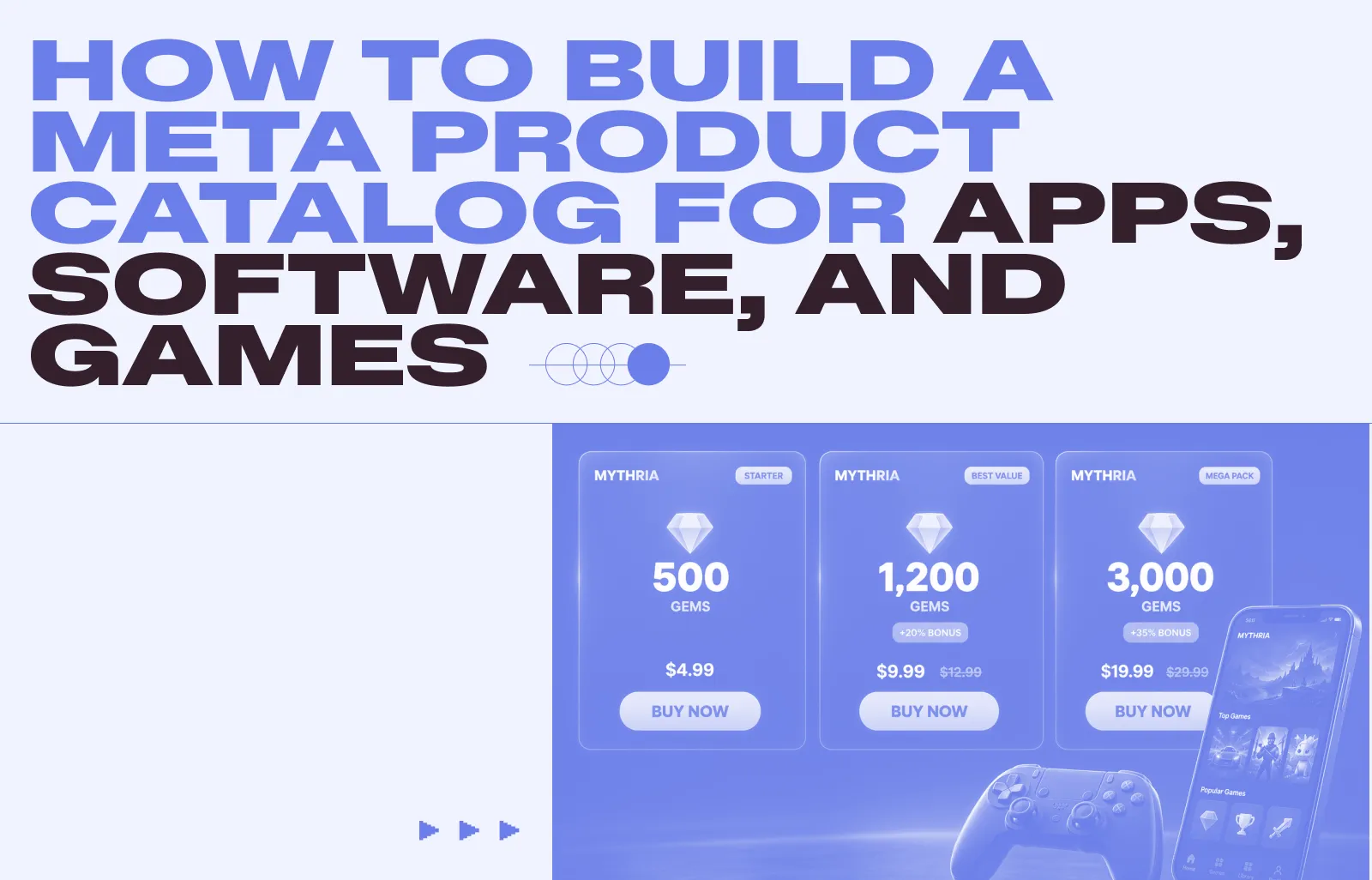
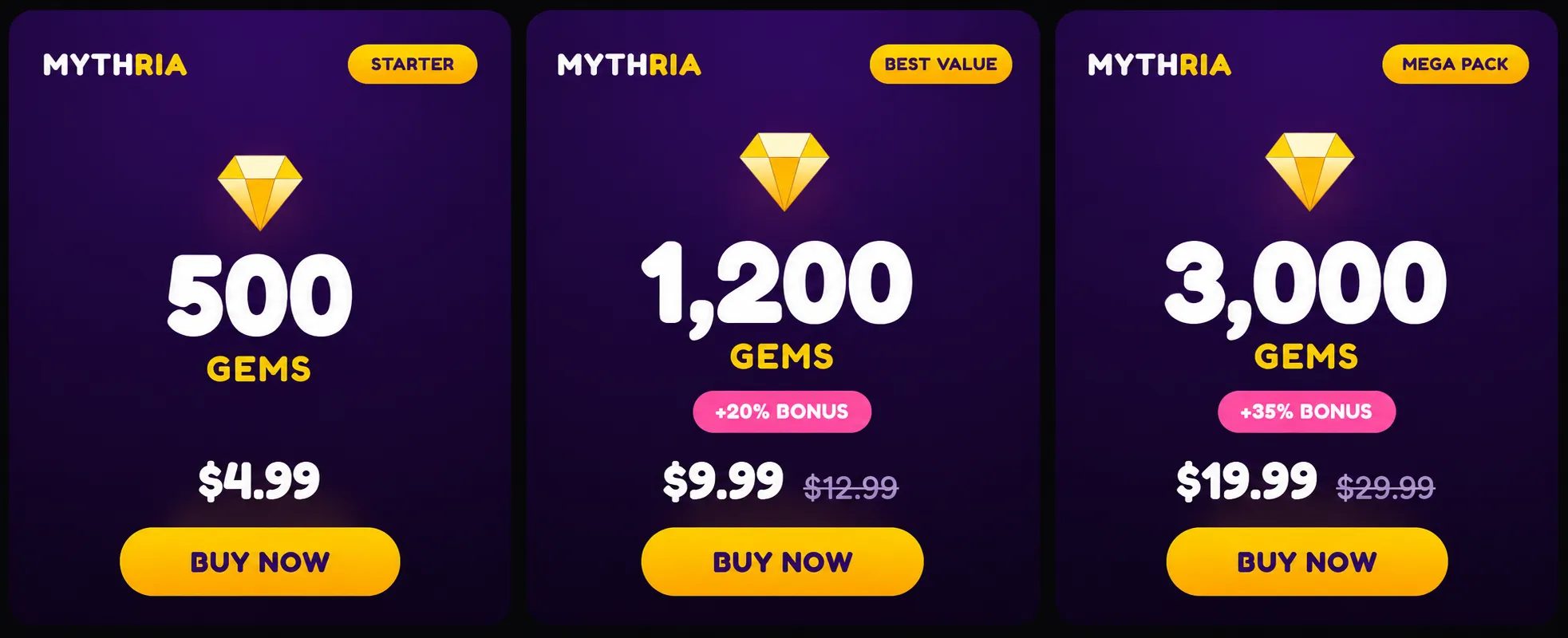
Most apps have exactly one image working for them: the app icon. But an icon can't sell a specific offer — the 1,200-gem pack with a 20% bonus, the annual Pro plan at 30% off, the new character bundle. Those offers are what actually drive revenue, and each one deserves its own creative.
That's the case for running your in-app purchases as a Meta catalog and building the creative in Marpipe: you turn a feed of offers into hundreds of tailored image and video ads — each showing the real pack, price, and value badge — instead of pointing every ad at the same store listing. This guide covers the two halves of getting there: what fields your feed should contain, and how to upload it to Meta.
Which Meta catalog type do apps and games use?
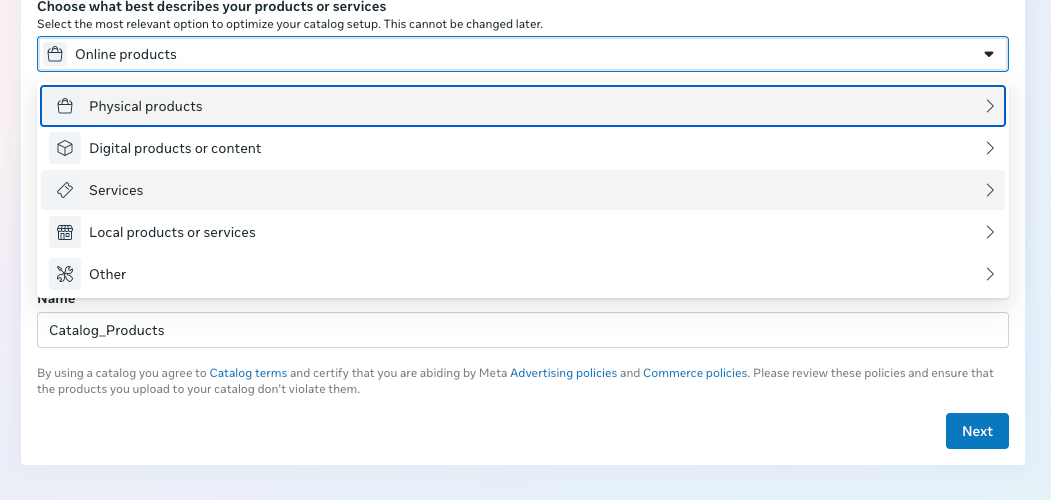
Apps, games, and software use Meta's Apps and software catalog type. The key idea: your in-app purchases are your catalog items. Each row in your feed is something a user can buy inside your app — a currency pack, a bundle, a battle pass, a subscription tier, a feature unlock, or a piece of DLC.
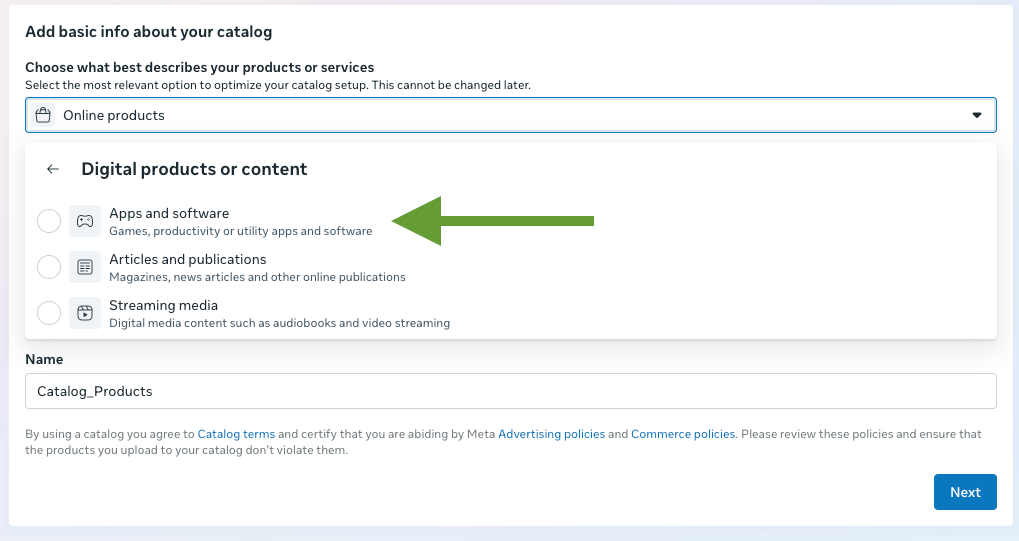
When you create the catalog, you'll choose this under Digital products or content → Apps and software. Meta describes it as "Games, productivity or utility apps and software." This choice cannot be changed after the catalog is created, so select it deliberately.
The two field layers you need
Two different sets of fields are in play, and keeping them straight is the whole game:
- Meta feed fields — what you send to Meta so the catalog is valid and performs well (required + recommended).
- Marpipe creative fields — extra columns that live in your Marpipe source feed and power your ad templates. Most of these never go to Meta; they exist so your designs can render the pack, the token amount, and the value badge into the image.
Layer 1 — Required Meta fields
These four are the minimum for a valid Apps and software item:
Naming gotcha: Meta's developer docs list these as name, url, and image_url because those docs describe the API object. An actual feed upload expects the Google-style column names title, link, and image_link. Marpipe outputs the correct feed column names for you.
Layer 2 — Recommended Meta fields (rich data = better performance)
You aren't required to send these, but each adds signal Meta can use to match your items to the right people, unlock more ad formats, and improve delivery.
app_category allowed values (enum — must match exactly): Games, Productivity, Social, Entertainment, Education, Utilities, Lifestyle, Health & Fitness, Business, Other. For any game — including free-to-play titles with in-game currency — use Games, and put the specific descriptor (RPG, match-3, etc.) in the free-text app_subcategory.
Layer 3 — Marpipe creative fields (for offer-specific creative)
This is what turns a plain store listing into a scroll-stopping offer ad. These columns live in your Marpipe source feed and get referenced by your designs; they don't need to be sent to Meta as standard fields (though you can surface a few via custom_label to filter ad sets by them).
Games & in-game currency:
Apps, SaaS & subscriptions:
The workflow: these fields feed your Marpipe design and treatment, Marpipe renders each row into a finished image (and/or video), and that rendered asset becomes the image_link you send to Meta. A spreadsheet of offers becomes hundreds of on-brand, offer-specific creatives — and when prices or bonuses change, you regenerate instead of redesigning.
How to create the catalog and upload your feed to Meta
The upload process is the same across catalog types — only the type selection and a few field dependencies differ. For apps and software:
1. Prepare your feed in Marpipe. Bring in your in-app purchases with the required fields, as many recommended fields as you can populate, and the creative fields above. Build a design/treatment that renders each offer into an image, then generate an output feed.

2. Create the catalog in Meta. In Commerce Manager, create a new catalog. On "Add basic info about your catalog," open the type selector and choose Digital products or content → Apps and software. Confirm — this is permanent — then name the catalog.
3. Connect your Marpipe feed as a data source. Add a data source and choose a scheduled feed using your Marpipe output feed URL (Marpipe hosts it and keeps it fresh). The Meta Catalog Batch API is also supported for higher-frequency updates. Marpipe writes the correct feed columns (title, link, image_link), so no manual renaming is required.
4. Publish and use in ads. Once items ingest cleanly, use the catalog in your app-promotion and catalog ad campaigns. Refresh the feed on a schedule that matches how often your offers and prices change.
A note on policy
Apps and games advertising is subject to Meta's standard advertising policies — keep pricing accurate, target age-appropriate audiences, and follow platform rules for your content. If your app involves real-money gaming, wagering, or betting, there are additional authorization requirements — see our dedicated [gaming and betting catalog guide]. (This is general guidance, not legal advice.)
FAQ
What Meta catalog type should an app or game use?
Apps and software, found under "Digital products or content." Your in-app purchases — currency packs, bundles, subscriptions, unlocks — are the catalog items.
Can I change the catalog type after creating it?
No. The type is set at creation and is permanent.
What are the items in an app catalog?
Your in-app purchases and SKUs: coin/token packs, bundles, battle passes, subscription tiers, feature unlocks, and DLC.
I only have an app icon. What goes in image_link?
The image you generate in Marpipe. You build a template that shows the actual offer — the pack, the token amount, the price and bonus — and the rendered image becomes your image_link.
What are the allowed app_category values?
Games, Productivity, Social, Entertainment, Education, Utilities, Lifestyle, Health & Fitness, Business, Other. It's a fixed list; use the free-text app_subcategory for anything more specific.
How does the token amount or bonus get into the ad?
As custom fields in your Marpipe source feed (like token_amount and bonus_pct). Your design references them, and Marpipe renders them into the creative image for every row.
Turning in-app purchases into ads? Marpipe turns your offers, bundles, and pricing into on-brand image and video creative at scale. See how designs and treatments work →