

When a product gets disapproved in the Merchant Center, it stops showing in your ads. It'll show you no impressions, no clicks, and no sales for that item. And it'll often happen without anyone noticing until the numbers dip. And these things rarely happen one at a time. One bad rule can knock out a whole group of products at once.
Most Google Shopping feed errors come down to a handful of usual suspects such as, prices that don't match, missing IDs, image problems, and stock that's out of sync. The messages Google shows you can be vague, but the fixes are almost always straightforward once you know what each error is actually pointing at.
This guide walks through the most common Google Shopping feed errors, what each one means, and exactly how to fix it. Start with the error you're seeing right now, or read the full article to clean up your whole product feed.
Error 1: Mismatched value
This error shows up when the price in your product feed doesn't match the price on your product page. Google checks both, and if they're different, it stops showing the product. The reason is simple: a shopper shouldn't click an ad that says $49.99 and land on a page that says $59.99.
What makes this one tricky is that the price often looks correct when you check it yourself. The problem is usually something small happening between your product feed and your live page. It can be because of sale price updated on the website but not in the product feed, tax or currency showing up differently in each place, a price sitting behind a "log in to see price" wall, or Google looking at an old, cached version your page from before your last update.
How to fix this
Open the disapproved product in the Merchant Center. It shows you the price it found on your page next to the price in your feed, so you can see exactly where they don't match. Then check the common causes:
- Tax: in most countries the feed price should leave tax out, while your page price includes it. That difference alone can trigger the error.
- Sale prices: put the discounted price in the sale_price field instead of replacing your regular price.
- Currency: make sure it matches the country you're selling to.
- Old page version: if the prices really do match, Google is reading an outdated copy of your page. Update your feed more often, and make sure the price in your page's Product schema markup matches what shoppers see.
Once both prices agree, ask for a re-review or wait for Google's next check, and the product will come back. Shopify users can use apps like Marpipe to automate this process and ensure your product feed stays fresh across every platform.
To stop this happening again, update your feed more often. Prices change all the time, and a feed that only updates once a week slowly falls out of sync with your site. That's what causes these disapprovals to hit whole groups of products at once. The more often your feed matches your live prices, the less often you'll see this error
Error 2: Incorrect or missing GTIN
A GTIN is the barcode number that identifies your product, the same one printed on the box. Google uses it to match your item to the exact same product other stores are selling, which helps it show your ad for the right searches. This error means the GTIN you sent is wrong, or you didn't send one at all.
It usually comes from one of three things.
- You typed the number wrong or it has a digit missing.
- You used an old GTIN that the manufacturer has since changed.
- You sell your own private-label product that has no official barcode, so the field is blank and Google flags it as missing.
How to fix this
First figure out which situation you're in, then fix accordingly:
- Wrong number: Check the GTIN against the one on the product packaging or the manufacturer's site. A single wrong digit points Google at the wrong product, which is worse than sending nothing.
- Out-of-date number: Manufacturers update barcodes when products get rebranded or repackaged. If yours is stale, get the current one and update the feed.
- No barcode at all (private label or custom products): Don't leave the field blank. Set the identifier_exists attribute to "false" instead. That tells Google you don't have a GTIN on purpose, and it skips the penalty a blank field would cause.
You can visit the GS1 website for your region to update your GTIN. For the U.S., go to www.gs1us.org. If you’re based in another country, GS1 has local affiliates around the world (e.g., GS1 UK, GS1 Canada, etc.).
After the fix, request a re-review or wait for the next crawl.
To keep this from coming back, audit your GTINs once a quarter. Barcodes go stale over time, and a wrong one quietly sends your ad to the wrong searches long before it gets disapproved.
Error 3: Image too small
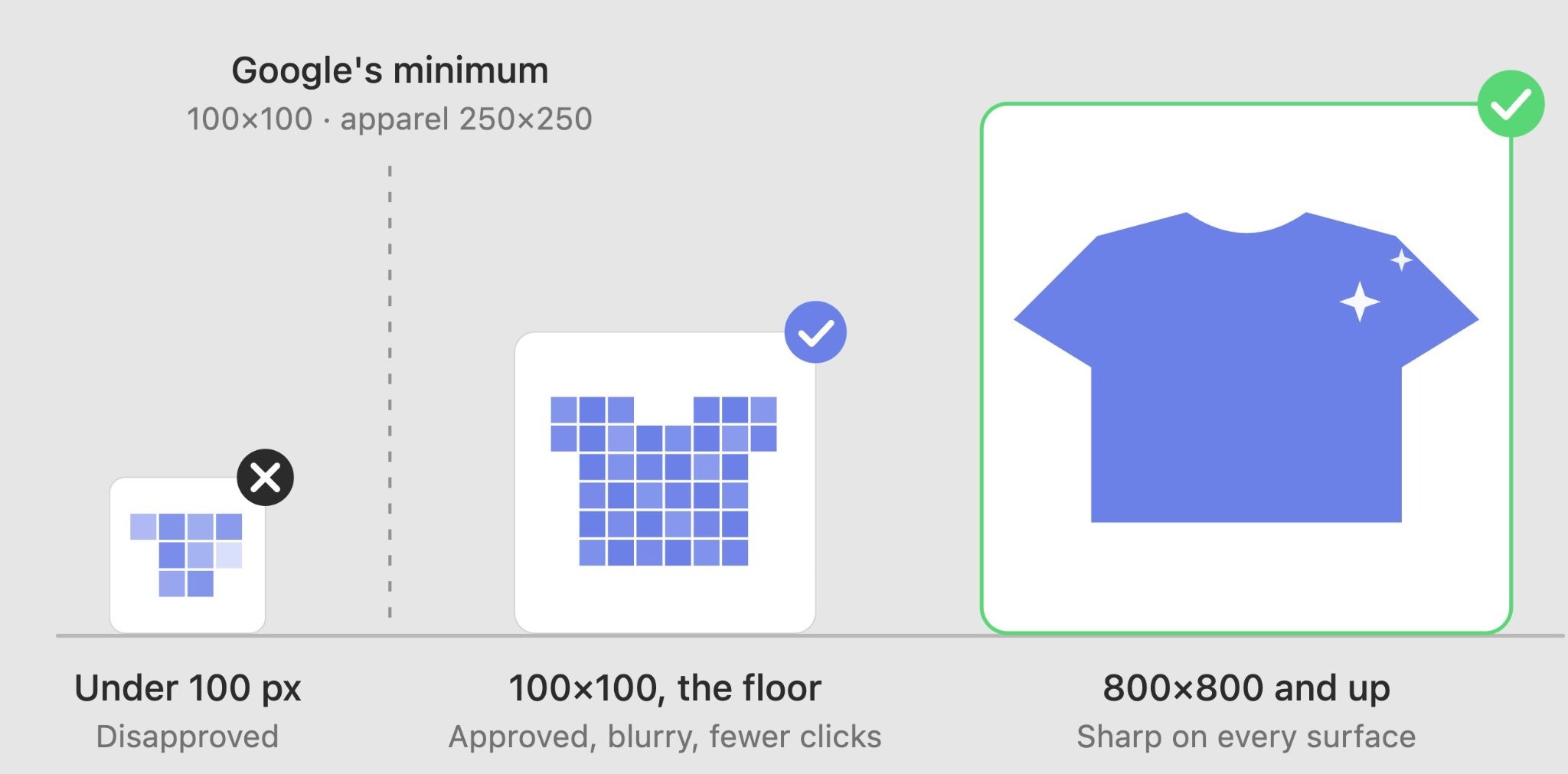
Google has a minimum size for product images, and this error means yours falls below it. For most products the requirement is at least 100 x 100 pixels, and 250 x 250 for apparel, but those are just the floor. Images that small look blurry and pixelated in an ad, so even when they technically pass, they hurt your click-through. Google would rather show nothing than a bad thumbnail, so it disapproves of the product.
This usually happens for a few reasons.
- Your store exports thumbnail-sized images to the feed instead of the full-size versions.
- The image link in your feed points to a small preview rather than the main product photo.
- Or the original photo was just uploaded at a low resolution to begin with.
How to fix this
Find which products are flagged in Merchant Center, then track down where the small image is coming from:
- Check the image link: Open the image_link URL from your feed in a browser. If it loads a tiny version, your feed is pointing at the wrong image. Update it to link to the full-size photo.
- Re-export from your store: Many platforms let you choose which image size goes into the feed. Switch that setting from thumbnail to full resolution.
- Replace low-quality originals: If the source photo itself is small, there's no shortcut. You'll need a higher-resolution image. Aim for at least 800 x 800 pixels so it stays sharp across every ad surface.
Once the larger image is in place, request a re-review or wait for the next crawl.
To avoid this going forward, set one minimum image size for your whole catalog and make sure your feed always pulls the full-size photo, not a preview. The image is the first thing a shopper sees, so it's worth getting right everywhere.
Error 4: Promotional overlay on image
Google wants your product images to show the product and nothing else. This error means your image has extra stuff added on top: text like "Sale" or "Free shipping," a watermark, a logo, a price tag, or a colored border or badge. Google disapproves these because promotional images make the results page look like a billboard instead of a clean product grid, and shoppers trust it less.
It usually happens when the image team adds sale banners or brand watermarks for the website, and that same image gets pulled straight into the feed. What works as a marketing image on your site breaks the rules in your shopping feed.
How to fix this
Find the flagged products in Merchant Center, then get a clean version of each image into the feed:
- Remove the overlay: Use the original product photo with no text, badges, or watermarks on it. The product should fill the frame on a plain background.
- Keep promos in the right place: You don't lose the sale message. Submit it through Merchant Center promotions instead, and Google adds the "Sale" tag for you, the allowed way.
- Separate web images from feed images: If your site needs banners and your feed needs clean shots, keep two versions so the marketing image never ends up in the feed by mistake.
Once the clean image is in, request a re-review or wait for the next crawl.
Fixing one image is easy but what if you have to fix hundreds of such images. This is where a tool like Marpipe helps. You can bulk-edit images across your whole catalog, swap in clean versions, and even test different image treatments to see which ones actually get more clicks, without going back and forth with a designer for every SKU.
This pays off beyond just clearing disapprovals.
Once your images are clean and built for the feed instead of pulled raw from your store, they can lift performance too. Menswear brand Twillory rebuilt its catalog ads with Marpipe and saw a 127% increase in ROAS, more than doubling revenue at the same ad spend. Clean, tested images don't only keep products live, they improve your ad conversations rate.
Error 5: Out of Stock products
This works the same way as the price mismatch, but for stock. Your feed says a product is in stock, but when Google checks the live page, it looks out of stock, or the other way around. Google disapproves it because it doesn't want to send shoppers to ads for things they can't actually buy.
It almost always comes down to timing. A product sells out on your site, but the feed still says "in stock" because it hasn't refreshed yet. Or Google can't clearly tell the status from your page, so it can't confirm the feed is right.

How to fix this
Open the flagged product in Merchant Center and compare the availability it read from your page against your feed, then sort out the cause:
- Out-of-sync stock: If your feed is behind your real inventory, the fix is faster updates. Refresh the feed at least daily, or use Google's automatic item updates so stock changes get picked up between refreshes.
- Unclear page: Make sure your product page states availability in a way Google can read, both in the visible "In stock / Out of stock" text and in your page's Product schema markup.
- Preorder or backorder items: If a product isn't shippable yet, use the matching availability value ("preorder" or "backorder") instead of "in stock" so the feed and page agree.
Once they match, request a re-review or wait for the next crawl.
To keep this from coming back, connect your feed to your real inventory so stock updates flow through automatically. Manual updates always fall behind, and out-of-stock catalog ads waste budget on clicks that can't convert. This drags down your Meta Advantage+ Shopping campaigns too.
Error 6: Page not found or not accessible
This error means Google tried to visit your product's landing page and couldn't load it properly. If shoppers can't reach the page, Google won't run the ad, so it disapproves of the product. It applies to both your desktop and mobile pages, and a product can be flagged for either one.
It happens because the product was deleted or its URL changed, so the link in your feed now leads to a 404 page. The page timed out because the server was slow when Google tried to crawl it. Your site blocks Google's crawler, so it sees an error or a login wall instead of the page. Or the link in your feed has a typo or an extra tracking parameter that breaks it.
How to fix this
Copy the link from your feed and open it yourself, on both desktop and mobile, then work from what you see:
- 404 or wrong page: The product moved or got deleted. Update the link in your feed to the live URL, or remove the product if it's gone for good.
- Slow or timing out: Check your site speed and server. If pages load slowly under load, Google may give up before the page finishes. Fix the speed issue, then re-submit.
- Blocked crawler: Make sure your robots.txt isn't blocking Googlebot, and that the page isn't hidden behind a login or a country or age gate that stops Google from reaching it.
- Broken link format: Strip out any extra tracking parameters or stray characters in the URL so it resolves cleanly.
Once the page loads correctly, request a re-review or wait for the next crawl.
To stop this happening again, set up monitoring that flags broken links and big drops in your feed's product count. A page that quietly 404s can sit there wasting nothing but losing you sales until someone catches it.
Use Marpipe to Keep Your Feed Clean and Your Products Live
Every error in this guide traces back to the same root problem that your feed that fell out of sync with your store. Marpipe gives you one place to clean, organize, and control your product feed before it ever reaches the Merchant Center. Here's what you can do with Marpipe:
- Inspect your entire source feed and manage every field in one place
- Clean, organize, and modify your product data without touching a spreadsheet
- Build product sets and categories to control exactly what goes to each platform
- Connect your feed to Google, Meta, TikTok, and any other ad platform
- Keep prices and stock in sync with daily feed updates (hourly available)
Book a demo and see what a clean, error-free feed does for your Shopping campaigns.
Frequently Asked Questions
What are the most common Google Shopping feed errors?
Most errors come down to a few recurring issues: prices not matching between your feed and product page, missing or incorrect GTINs, images that are too small or have promotional overlays, inventory status out of sync, and broken landing page links. These usually happen because the feed fell out of sync with your live store, not because of anything deeply technical.
Why does Google disapprove of products for price mismatches?
Google checks your feed price against the price on your actual product page. If they don't match, even by a small amount, it pulls the product from ads. This is usually caused by sale prices updated on site but not in the feed, tax differences, or Google reading a cached version of your page. Updating your feed more frequently prevents it.
What should I do if my product doesn't have a GTIN?
If you sell private-label or custom products without an official barcode, don't leave the GTIN field blank. Instead, set the identifier_exists attribute to "false." This tells Google you intentionally don't have a barcode, and it skips the penalty a blank field would trigger. For products that do have GTINs, audit them quarterly since barcodes go stale over time.
Why are my product images getting disapproved?
Google disapproves images that are too small (under 100x100 pixels, or 250x250 for apparel) or that contain promotional overlays like sale banners, watermarks, logos, or price tags. This usually happens when marketing images from your website get pulled straight into the feed. Use clean product photos with no text or badges, and aim for at least 800x800 pixels.
How do I stop my feed from falling out of sync with my store?
Update your feed more frequently. A feed that refreshes once a week will slowly drift from your live prices and inventory, causing disapprovals across whole groups of products. Daily updates are the minimum, and hourly is better if your catalog changes often. Connect your feed to your real inventory so stock and price changes flow through automatically.