

Google Product Category is the standardized classification system Google uses to organize every product listed in Google Shopping. It's a hierarchical taxonomy - a giant tree of categories and subcategories that gets increasingly specific as you go deeper.
It comes from Google's official product taxonomy, a fixed list of about 5,500 categories that every product in a Merchant Center feed is expected to map to. The attribute itself is called google_product_category in your product feed, and it tells Google's algorithms exactly which "aisle" of the digital store your product belongs on.
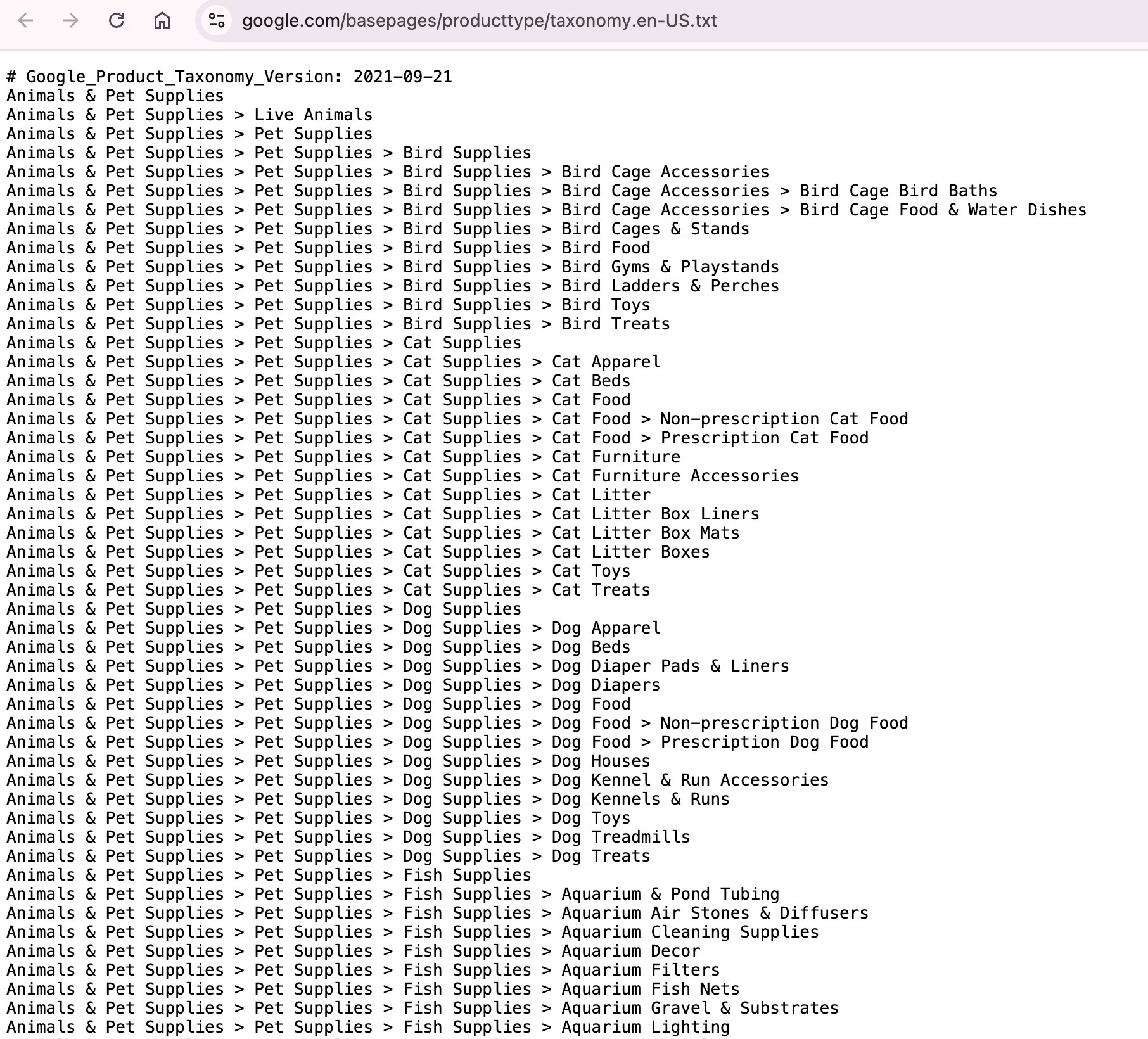
Below you can see what Google's product taxonomy actually looks like. It's a plain text file with ~5,500 hierarchical category paths, each one read left-to-right (most general → most specific).
Brands either set this manually in their product feed or use tools like Marpipe's feed management to map their catalog to the right categories. Getting it right matters because it affects how and where Google surfaces your products in search results.
The 21 top-level product categories
At the very top of Google's taxonomy are 21 top-level categories. Every product in Google Shopping, regardless of vertical, price point, or country, sits underneath one of these:
- Animals & Pet Supplies
- Apparel & Accessories
- Arts & Entertainment
- Baby & Toddler
- Business & Industrial
- Cameras & Optics
- Electronics
- Food, Beverages & Tobacco
- Furniture
- Hardware
- Health & Beauty
- Home & Garden
- Luggage & Bags
- Mature
- Media
- Office Supplies
- Religious & Ceremonial
- Software
- Sporting Goods
- Toys & Games
- Vehicles & Parts
A few of these don't behave the way the name suggests:
- Hardware is tools, building materials, and fasteners but not computer hardware, which lives under Electronics.
- Media is books, movies, music, video games, and magazines, physical and digital.
- Business & Industrial is the catch-all for B2B and industrial supplies — lab equipment, agricultural products, manufacturing components, signage, food-service gear.
- Mature is adult products, which carry their own policy restrictions in Google Shopping.
- Religious & Ceremonial covers religious art, ceremonial clothing, and religious texts. It's niche but consistent enough that Google gave it its own root.
Where to Find the Full Google Product Category Taxonomy
Google publishes the complete product category taxonomy publicly, and you can access it in a couple of different formats depending on what you need.
Plain text (category names only) This version lists every category path in the hierarchy, one per line, without any ID numbers. It's the easiest to scan if you just want to browse or search for the right category. Download it here.
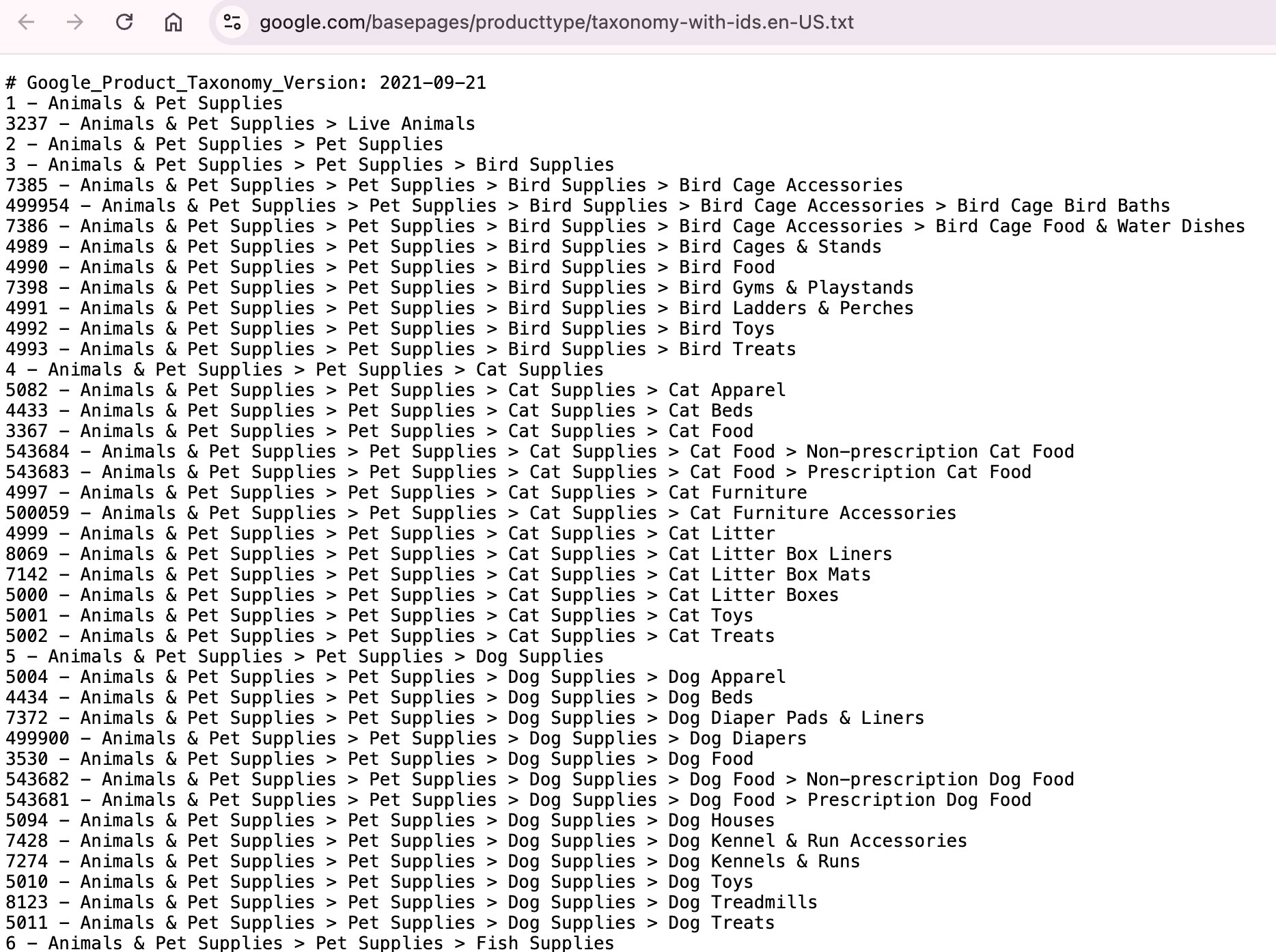
Text file with IDs This version includes Google's numeric ID for each category alongside the full category path. This is the one you'll want if you're building feeds programmatically or need to reference categories by ID in your product data. Download it here.
How Google actually categorizes your products
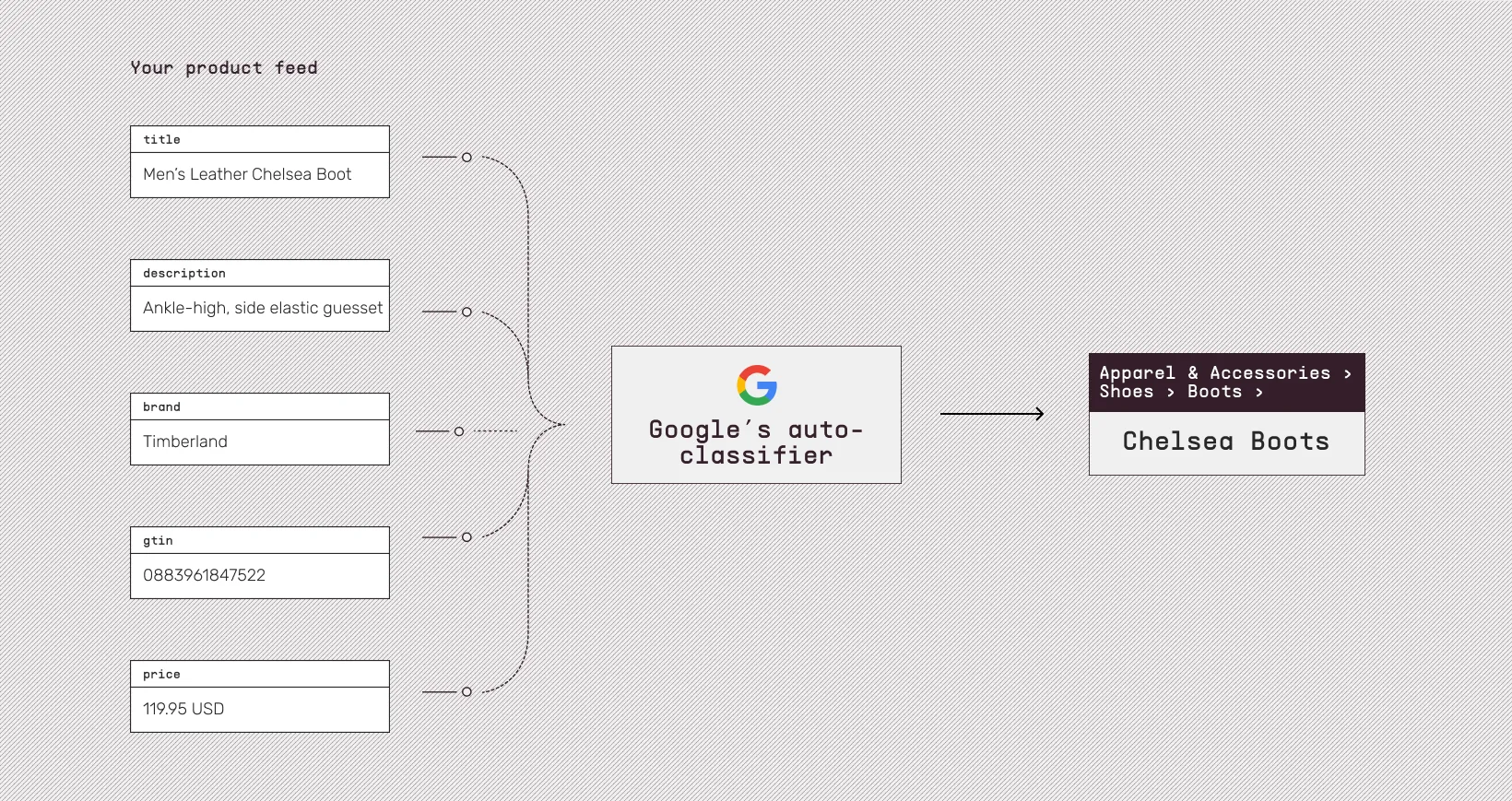
In Google Merchant Center, you don't actually have to set the product category at all. Google does it for you, automatically.
Google reads your product data from your product feed, makes its best guess, and applies the result. So the google_product_category field in your feed is technically optional. It exists so you can override Google's guess when you need to.
The attributes it leans on most are:
- Title: It's the single biggest input. A clear, specific title like "Men's Black Leather Chelsea Boot — Size 10" leaves very little room for misclassification. A vague title like "Premium Boots — Style #4471" leaves a lot.
- Description: Supports the title with additional context, especially when the title alone is ambiguous. ("Apple" could be the fruit or the brand. The description usually settles it.)
- Brand: Narrows the possibility space. A "boot" sold by Timberland is almost certainly footwear. A "boot" sold by an auto-parts retailer might be a car cover.
- Gtin (or upc / ean): When present, this is the most authoritative signal. Google can look up the GTIN in its own product catalog and inherit a category that's already been verified against manufacturer data. This is the one signal that pulls from outside your feed.
For most products in most catalogs, the auto-assignment is accurate. Google has been doing this for a long time, the taxonomy is updated continuously, and modern feeds (which usually have decent titles and GTINs) give the system enough to work with. The default state of most Merchant Center accounts is: products are classified correctly, no one touched the category field, and no one needed to.
The times when Google gets it wrong, is typically because the title is too generic, the brand is unknown to Google, the GTIN is missing, or the product genuinely sits between two categories. In those cases, you set google_product_category yourself. That's what the override is for.
Google doesn't accept manual category overrides in every situation. The override is only honored in specific cases, which we'll cover next.
When Should You Actually Set google_product_category Manually?
Google's auto-classification is good enough most of the time. But if you're auditing your feed and noticing unexpected disapprovals, or products showing up in irrelevant searches, a misclassified category is often the culprit. Here are the specific situations where it's worth stepping in and setting the category yourself.
1. To escape category-specific attribute requirements
A handful of categories in Google's taxonomy carry extra mandatory fields. If Google auto-classifies your product into one of them, your feed inherits all the additional requirements, even if the product doesn't really belong there.
The categories that trigger this most often:
- Apparel & Accessories requires size, color, age group, gender, and material.
- Mobile Phones requires fields tied to contracts, installment plans, and (in some regions) energy-efficiency class.
- Software requires fields specific to software subscriptions and licensing.
If Google has misclassified something benign as one of these, say, a fabric storage bin classified as "Apparel & Accessories,” you'll suddenly get disapproval for missing size and color on a product that has neither. Setting google_product_category manually to the correct, less-strict category clears that.
2. To structure Google Ads Shopping campaigns by category
If you build your Google Ads Shopping campaigns around Google's product categories (using them as the basis for ad groups, bidding tiers, or campaign segmentation) then the category Google has on file for each product directly affects which campaign that product ends up in.
In that setup, you don't want Google quietly reclassifying products and shuffling them between your campaigns. Setting google_product_category manually locks the value in place and gives you a stable structure to bid on.
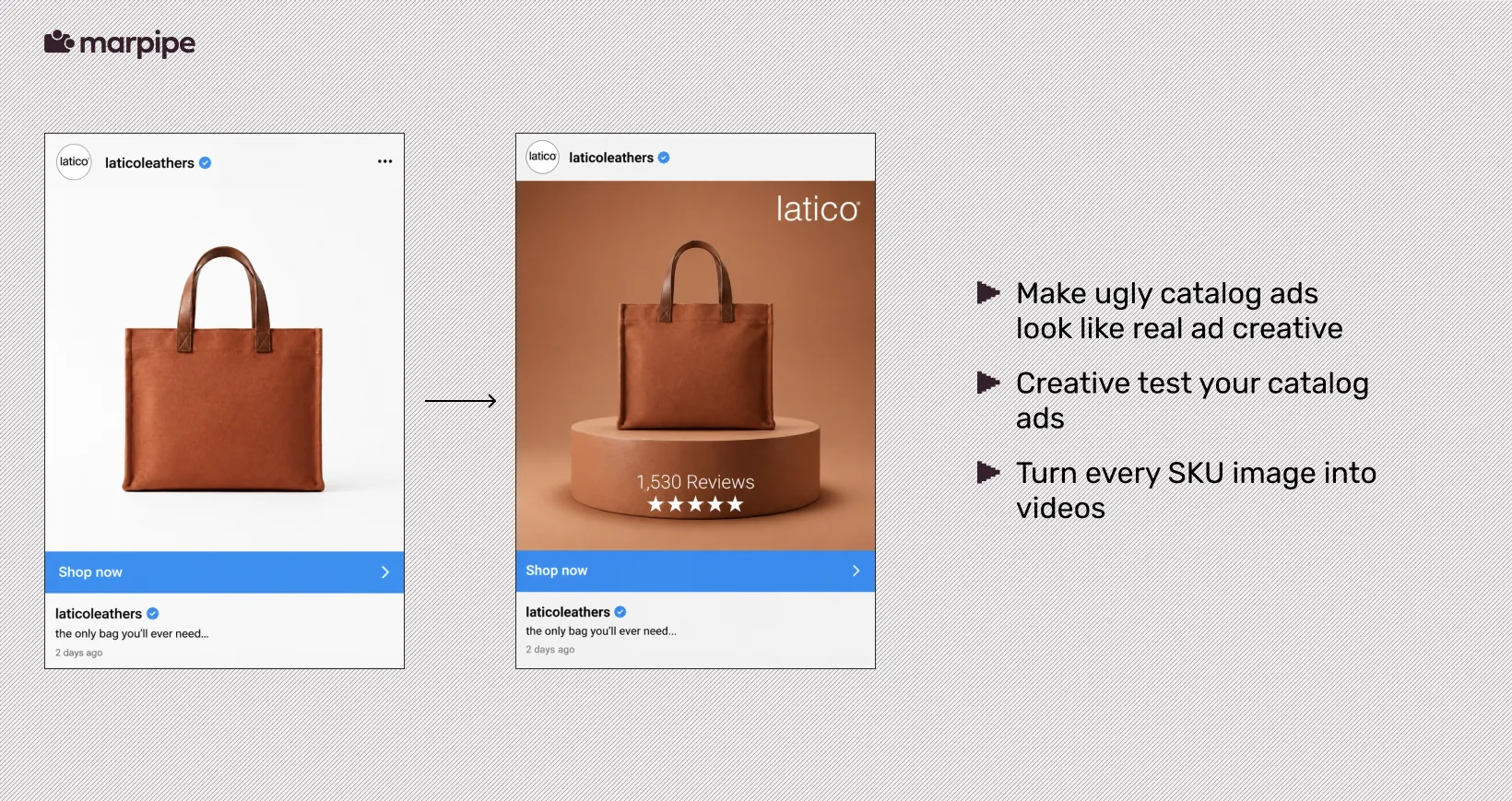
But structure is only half of catalog ad performance. The other half is what the ad actually looks like. By default, catalog ads on platforms like Google, Meta, and TikTok just pull the raw product image straight from your feed. There's no branding, no pricing callouts, no design. Tools like Marpipe's Enriched Catalogs let you overlay branded design treatments, dynamic pricing, social proof, and sale badges across every SKU in your catalog automatically.
3. For alcohol compliance
Alcoholic beverages have strict policy rules in Google Shopping, and those rules only kick in if the product is correctly categorized as alcohol. If Google misclassifies a bottle of bourbon as a generic beverage or a gift item, the product can either get disapproved for hidden policy reasons. Either way, alcohol is not a category you want left to inference. For every alcoholic product, set google_product_category to the correct alcohol path manually.
4. When the auto-assignment is visibly wrong
Outside of those three cases, Google's documentation says manual overrides aren't strictly accepted, meaning the auto-categorization may continue to win even if you set the field. But there are still practical reasons to fill it in:
- Operational consistency: When you have a large catalog and let Google auto-categorize, the same product type can end up scattered across slightly different categories depending on title variations. A manually set value gives you a single, predictable reference point for reporting and segmentation.
- A defensive signal: If Google's classifier can't make confident sense of a product (sparse title, no GTIN, ambiguous brand), a manually set value gives the system something to fall back on.
- New or niche catalogs: New SKUs without an established product-graph entry are more likely to be misclassified in their first few days. Niche, B2B, or collectibles catalogs often don't have titles that map cleanly to Google's taxonomy at all. Setting the category manually is faster than rewriting every title.
Why Do You Still Need to Understand Google's Taxonomy?
If Google auto-assigns the category and only honors your override in a handful of cases, why do you need to know any of this? Why not just upload the feed, let Google do its thing, and move on?
It's a fair question. There are two reasons the taxonomy is worth understanding even if you never touch google_product_category yourself.
1. It maps directly to product_type, which you fully control
Apart from google_product_category in your product feed,there is a different attribute called product_type. They sound similar and they're often confused, but they're not the same thing:
- google_product_category is Google's standardized taxonomy. Fixed list, defined by Google, used by Google's algorithms. Google can override what you submit.
- product_type is your own custom taxonomy. You define it however you want, and Google always respects what you submit. "Womens > Footwear > Boots > Chelsea Boots" is a valid product_type. So is "Bestsellers > Q4 Promo > Boots."
product_type is the field that you use for Google Ads Shopping campaign structure, performance reporting, and merchandising segmentation.
But a good product_type taxonomy isn't invented from scratch. Most successful merchants mirror Google's taxonomy when they build it by using the same depth, similar naming, comparable specificity. When your custom taxonomy lines up with Google's, your Shopping reports, your bidding tiers, and your ad groups all match how Google itself classifies your catalog. One consistent view from feed to ad group to dashboard.
2. It makes your titles better, which makes auto-categorization better
The product title is the single biggest signal Google uses to assign a category, and Google's classifier doesn't read titles the way a human does. It reads them looking for vocabulary that matches its own taxonomy. The closer your title's wording is to Google's category names, the more confident the auto-assignment.
Words like:
- "Sandals"
- "MP3 Players"
- "Chelsea Boots"
- "Bird Cage Bird Baths"
…are the exact terms Google's system has been trained to recognize. If you sell decorative inserts that sit in a bird cage as a water dish, and you don't know Google has a category literally called "Bird Cage Bird Baths," your title probably won't trigger it. You'll get assigned to "Bird Supplies" or something broader, and your impressions will skew toward the wrong queries.
Once you know the exact phrasing Google uses for your products, you can work that phrasing back into your titles.
Doing all of this without a paid feed tool
Writing titles that match Google's taxonomy vocabulary, building a product_type taxonomy that mirrors Google's structure, and keeping a feed clean enough that the classifier doesn't get confused are all standard feed-management tasks. For a 50-SKU catalog, a spreadsheet handles it. For anything larger, you need a tool.
The most common tools for this start around $1,200/month for a mid-size catalog. That's roughly $14,000 a year for product feed hygiene.
Marpipe Feed Management does the same core work for free.
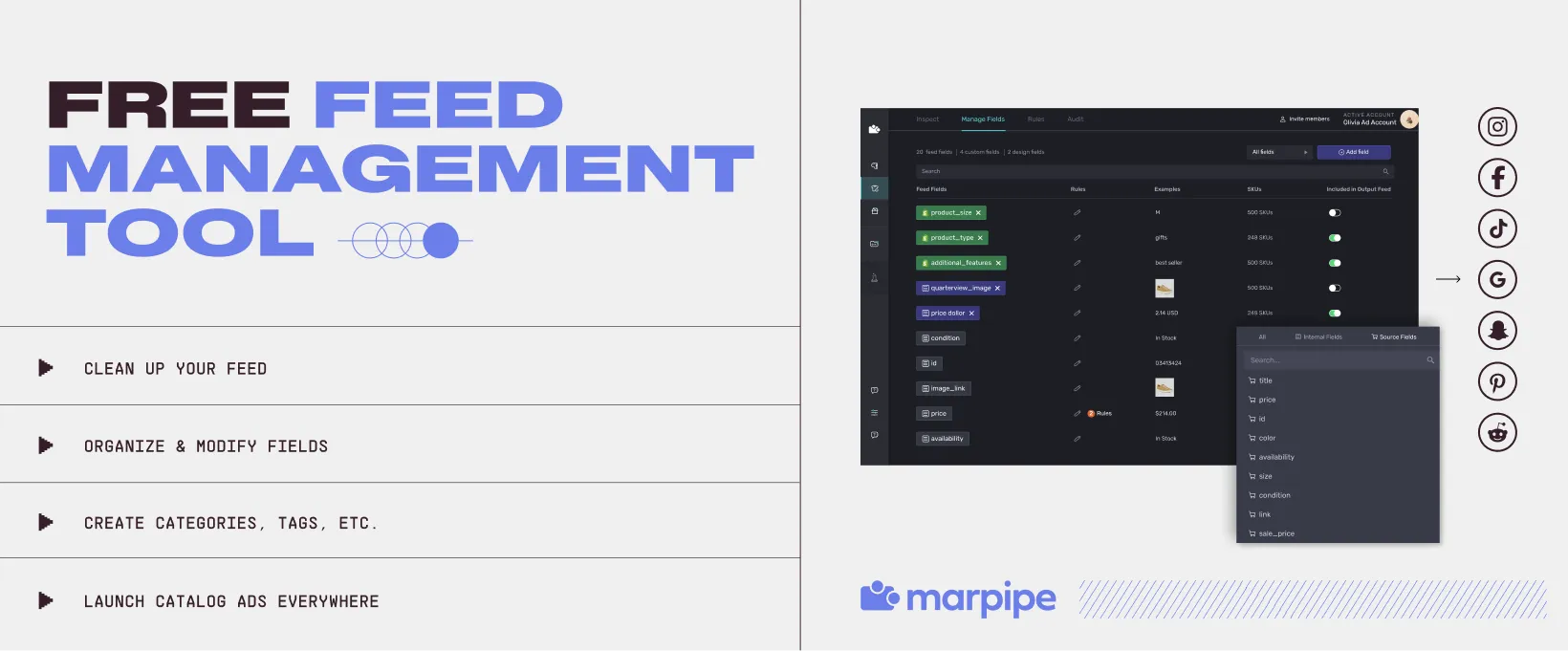
It offers:
- Bulk title and description cleanup: Standardize formats, rename, merge, split, and transform any field across your catalog. Rewrite 5,000 titles to use Google's taxonomy vocabulary in one pass, not one SKU at a time.
- Categories, tags, and product sets: Build a product_type taxonomy that mirrors Google's structure, apply labels, and segment your catalog for cleaner campaign structure and reporting.
- Feed hygiene: Fix formatting inconsistencies, remove duplicates, and standardize the fields Google reads. It’s the kind of work that improves auto-categorization accuracy.
- Push to every channel: The same feed work that improves Google Shopping pays off on Meta, TikTok, Pinterest, and Snapchat. Marpipe sends to all of them from one place.
Start your free trial of Marpipe Feed Management →