

.jpeg)
A Bing Shopping Feed is a structured file that contains your product data and powers Bing Shopping Ads, which are now part of Microsoft Advertising. Google Shopping usually gets most of the attention when people talk about product feed advertising, but Bing Shopping is still worth paying attention to. Competition is often lower, cost-per-click tends to be cheaper, and ads reach users across Microsoft’s search network.
If you run catalog ads on more than one platform, setting up your Bing Shopping Feed correctly matters. It affects how often your products appear, how they’re shown, and how efficiently your ad spend is used.
What Is a Bing Shopping Feed?
A Bing Shopping Feed is a product catalog file formatted for Microsoft Advertising shopping campaigns. It works in a similar way to Google Shopping feeds. The file includes details about each product you want to advertise, such as:
- Product titles and descriptions
- Images and additional image links
- Pricing and availability
- Product identifiers like GTINs, MPNs, and brand
- Product categories and custom labels
- Shipping and tax information
Microsoft Advertising uses this feed as the data source for your shopping ads. These ads can appear in Bing search results, across the Microsoft Audience Network, and on partner sites.
Why Bing Shopping Matters
Bing’s overall search market share is smaller than Google’s, usually around 3–6% globally. Even so, that still represents millions of daily searches. The audience is also different. Bing users often skew older, tend to have higher household incomes, and frequently show strong purchase intent. For many e-commerce brands, this audience converts well.
Bing Shopping campaigns also come with some practical advantages:
- Lower CPCs, often 30–50% cheaper than Google Shopping
- Less competition, which can mean better visibility
- Easy setup through Google Shopping campaign imports
- Strong ROAS for many advertisers, sometimes comparable to Google
Setting Up Your Bing Shopping Feed
Step 1: Create a Microsoft Merchant Center Account
Before uploading a feed, you need a Microsoft Merchant Center account. This is separate from your Microsoft Advertising account, but the two connect directly.
To get started:
- Go to Microsoft Merchant Center
- Sign in using your Microsoft Advertising credentials
- Navigate to Tools > Merchant Center
- Complete store verification and set up tax and shipping
Step 2: Format Your Product Feed
Bing supports several feed formats:
- XML (Atom 1.0 or RSS 2.0)
- TXT (tab-delimited)
- CSV
Each product in your feed needs certain required attributes.
Required attributes include:
- id
- title
- description
- link
- image_link
- availability
- price
- brand
- gtin or mpn
- condition
Recommended attributes include:
- additional_image_link
- product_type
- google_product_category
- custom_label_0 through custom_label_4
- sale_price
Step 3: Upload Your Feed
There are a few ways to upload your feed into Microsoft Merchant Center:
Manual upload
You upload the file directly through the interface. This works well for testing or smaller catalogs.
Scheduled fetch
You provide a hosted feed URL, and Microsoft fetches updates on a schedule. This is the most common setup for ongoing use.
Content API
For large catalogs or frequent changes, Microsoft offers a Content API that allows programmatic feed management.
Third-party feed tools
Feed management platforms, like Marpipe’s feed management tool, can help organize products, resolve errors, and manage feeds across multiple platforms, including Bing.
Step 4: Validate and Fix Errors
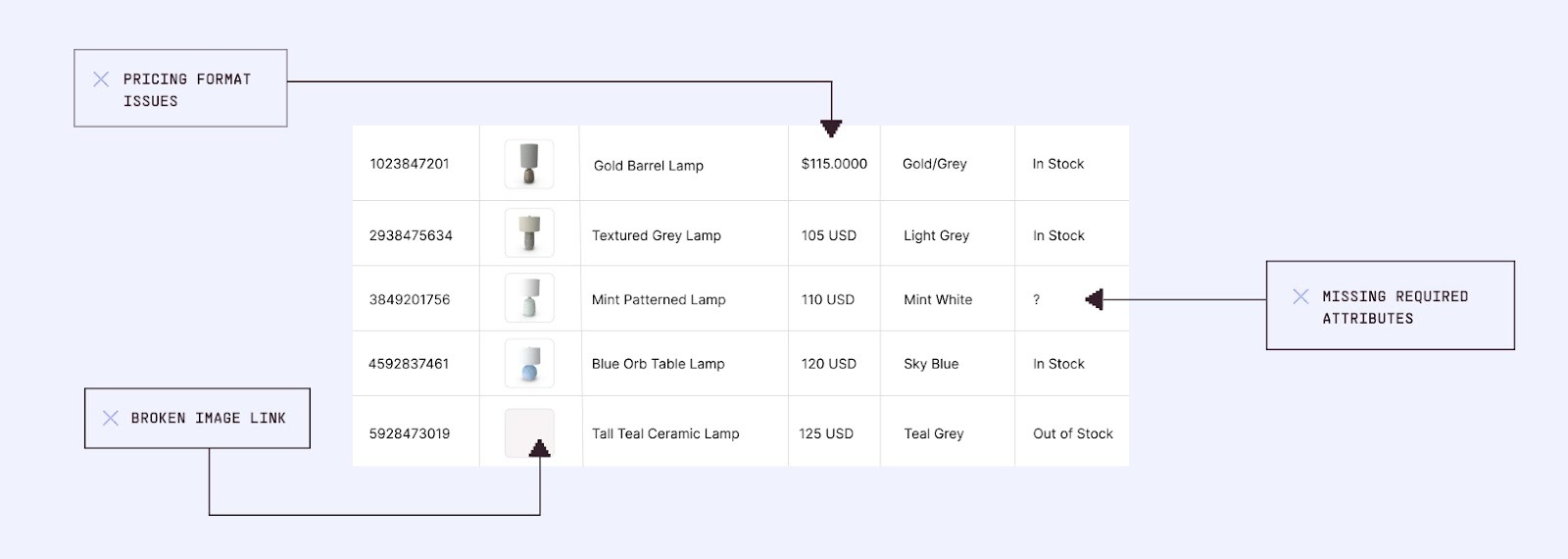
After upload, Microsoft Merchant Center processes the feed and reports errors or warnings. Common issues include:
- Missing required attributes
- Broken image links or invalid URLs
- GTIN or MPN mismatches
- Pricing format issues
- Unsupported characters in descriptions
Errors must be fixed before products can run. Warnings do not block ads, but they’re still worth addressing.
Bing Shopping Feed Best Practices
Optimize Product Titles
Product titles matter more than almost any other attribute. Bing generally recommends titles in the 50–80 character range that include:
- Brand name, if relevant
- Clear product name
- Key attributes like size, color, or model
A descriptive title performs better than a vague one.
Use High-Quality Images
Images strongly influence click-through rates. Follow basic image guidelines:
- At least 220 × 220 pixels
- Clean, neutral backgrounds
- Show the actual product
- Use additional_image_link for extra angles
- Make sure images load quickly

Leverage Custom Labels
Bing supports five custom label fields. These are useful for organizing products by things like:
- Margin
- Seasonality
- Performance
- Inventory speed
- Testing groups
Custom labels help with bidding and budget control inside shopping campaigns.
Keep Your Feed Updated
Feeds should reflect what’s actually happening in your store:
- Update prices when promotions run
- Mark availability accurately
- Add new products as soon as they’re live
- Refresh images and descriptions when needed
Automation helps here, especially if inventory or pricing changes often.
Integrating Bing Shopping Into a Broader Feed Strategy
Most e-commerce brands don't advertise on just one platform. You're likely running Facebook catalog ads, Instagram product ads, and possibly TikTok catalog ads as well.
The challenge? Each platform has different feed requirements, formatting rules, and optimization best practices. Managing separate feeds for Google, Bing, Meta, Pinterest, TikTok, and other platforms becomes overwhelming fast.
The Multi-Platform Feed Approach
Many brands maintain one master product catalog and use feed tools to format it for each platform. This reduces duplicate work, limits errors, and keeps product data consistent. It also makes testing and optimization easier across channels.
Marpipe’s feed management platform supports this approach by letting brands manage and distribute feeds across multiple platforms from one place.
Common Bing Shopping Feed Errors and Fixes
Missing GTIN
Some categories require valid GTINs. Add them where available. For custom products, set identifier_exists to false.
Invalid image link
Check that image URLs work, use HTTPS, and ensure images are publicly accessible.
Missing shipping information
Set default shipping in Merchant Center or include shipping details at the product level.
Price mismatch
Make sure the feed price matches the price on the product page. Use sale_price attributes instead of changing base prices during promotions.
Measuring Bing Shopping Feed Performance
Once campaigns are live, track key metrics such as impressions, CTR, CPC, conversion rate, and ROAS.
Inside Microsoft Advertising, the Product Groups report lets you analyze performance by SKU, category, brand, custom label, or price range. This data helps guide budget decisions and optimization over time.
Take Your Bing Shopping Feed to the Next Level
Setting up a Bing Shopping Feed is just the beginning. To maximize performance across Bing and all your other advertising platforms, you need strong product feed management practices and the ability to create compelling product ads that stand out.
Marpipe helps e-commerce brands manage their product feeds across multiple platforms and transform those feeds into beautiful, high-performing catalog ads. Whether you're advertising on Bing, Google, Meta, TikTok, or Pinterest, Marpipe gives you the tools to organize your product catalog with our free feed management platform, enrich your product data with AI-powered optimization, create branded catalog ads that convert better than generic product listings, and scale across platforms without manual work.
Our feed management platform is 100% free, making it easy to coordinate feeds across all your advertising platforms without additional costs. You get professional feed management that scales with your business, with no per-product fees, no usage limits, and no hidden catches.
For brands looking to maximize catalog advertising performance, Marpipe's enriched catalog ads have driven an average 53% ROAS increase compared to standard product feed ads. By giving you complete creative control over how your products appear in catalog ads, we help you stand out in crowded feeds and convert more browsers into buyers.
Ready to level up your product feed strategy? Start with Marpipe's free platform or schedule a demo to see how we help brands maximize ROAS across all catalog advertising platforms.
Want to learn more about product feeds? Check out our guides on Google Merchant Center Feed, WooCommerce Product Feed, Amazon Product Feed, and Shopify Product Feed for platform-specific strategies.
Frequently Asked Questions
What’s the difference between a Bing Shopping Feed and a Google Shopping Feed?
They’re almost the same. Both use the Google Product Feed specification for formatting. The differences are small — a few platform‑specific attributes and the merchant center you use to manage them. Most brands just build a Google Shopping Feed first and then import it into Bing.
Can I use the same feed for Bing and Google Shopping?
Yes. Bing accepts Google Shopping feed formats, so you can point both platforms to the same file. Some brands even keep one feed URL and connect it to both Google Merchant Center and Microsoft Merchant Center.
How often should I update my Bing Shopping Feed?
Daily updates are usually best. That way pricing, availability, and inventory stay accurate. If your stock changes quickly or you run promotions often, update more frequently — even multiple times per day. The Content API or automated feed tools can handle that.
Do I need a GTIN for every product in my Bing Shopping Feed?
For most products, yes. GTINs (UPCs, EANs, ISBNs) are required, especially in categories like electronics, media, and apparel. If you sell items without GTINs, handmade, custom, or vintage, you can set identifier_exists = false in your feed to get around the requirement.
What’s the maximum file size for a Bing Shopping Feed?
Microsoft Merchant Center allows feed files up to 4GB. That’s enough for most catalogs. If yours is bigger, split it into multiple feeds or use the Content API for uploads.