

.jpeg)
Shopify Product Feeds, Explained Without the Jargon
Shopify runs more than 4 million online stores, which makes it the default choice for most direct‑to‑consumer brands. One of the most handy things it does is generate product feeds, but here’s the truth: the built‑in tools are pretty bare‑bones, even if you’re paying for Shopify Plus.
So what’s a product feed?
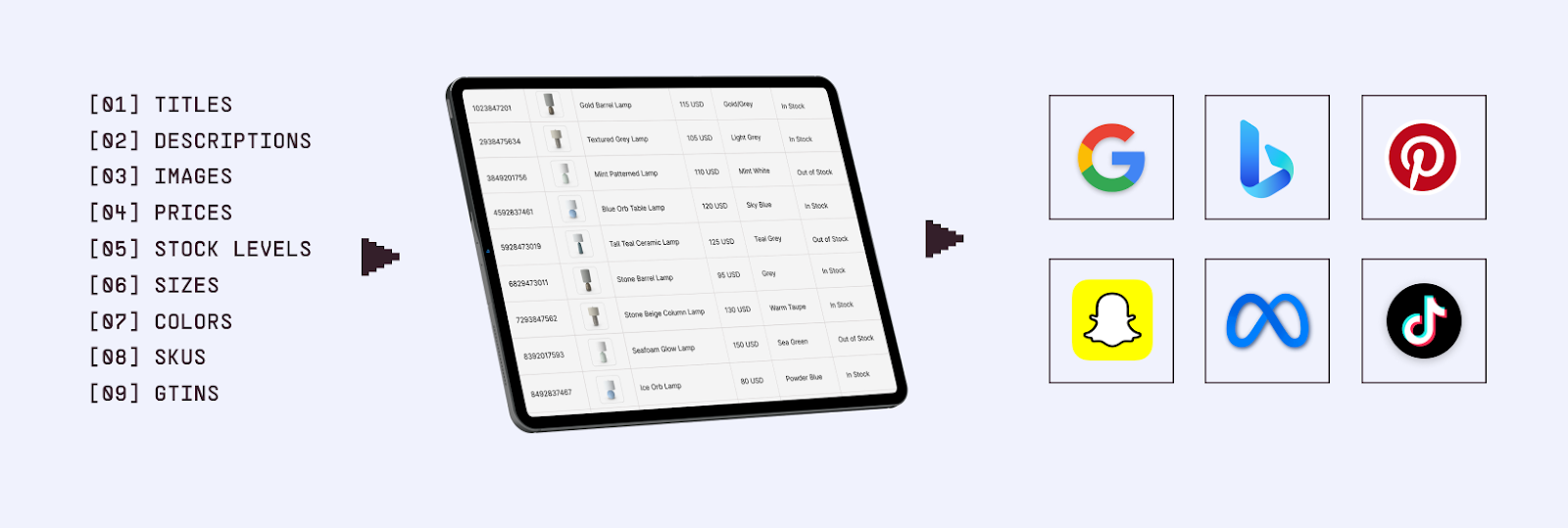
Think of it as a spreadsheet or file that lists out all your products in a way ad platforms can understand. It includes the basics titles, descriptions, images, prices, stock levels, sizes, colors, SKUs, GTINs , basically everything a platform needs to show your products correctly in ads.
That feed is what powers:
- Google Shopping Ads
- Facebook and Instagram Catalog Ads
- TikTok Shopping
- Pinterest Shopping Ads
- Snapchat Catalog Ads
- Bing Shopping Ads
If your feed is messy or incomplete, well, best case scenario: your ads won’t look right. Worst case scenario: they might not even run.
How Shopify Handles Feeds
Shopify does have native integrations that automatically sync your catalog with big platforms:
- Meta (Facebook + Instagram) → Products flow straight into Meta Commerce Manager.
- Google → Your catalog gets pushed into Google Merchant Center.
- TikTok → Products sync directly into TikTok’s catalog system.
Sounds easy, right? Just connect and go.
But there’s a catch: these integrations are convenient, not powerful. You don’t get much control over how your data is structured or optimized. And when you’re running serious ad campaigns, that lack of control can hurt performance really bad.
That’s why most experienced advertisers end up using dedicated feed management tools. They give you the flexibility to tweak, optimize, and scale your feeds across multiple platforms, instead of being stuck with Shopify’s “good enough” defaults.
The Problem with Shopify's Native Feed Management
Shopify's built-in feed tools work for basic catalog advertising, but they fall short for brands serious about optimization. Native organization relies solely on Collections, product tags, and product type, missing custom labels, flexible product sets, and performance-based categorization. Feed customization is restricted with fixed formatting and no ability to optimize titles differently for Google (search-focused) vs. Meta (discovery-focused). The same feed data goes to all platforms, preventing platform-specific optimization. Additionally, native integrations lack comprehensive feed-level performance analysis and automated quality checks.
How to Create and Optimize a Shopify Product Feed
Option 1: Use Shopify's Native Integrations (Basic)
Best for small or simple catalogs. Install the Google & YouTube, Facebook & Instagram, or TikTok sales channels, connect the corresponding business account, choose products or collections to sync, and let Shopify push products automatically. This is quick to start but inherits the native limitations (all the ones we just discussed: minimal optimization, shared data across platforms, limited control).
Option 2: Use Shopify Product Feed Apps
Feed apps in the Shopify App Store (e.g., AdNabu, Simprosys, DataFeedWatch, Flexify) add better mapping, custom labels, advanced filtering, and multi-channel support. They also help with error detection and multiple feed versions. Pick based on channels supported, rule sophistication, and catalog size; pricing ranges from free tiers for small stores to enterprise plans.
Setup Process (General):
- Install app from Shopify App Store
- Authorize access to your store data
- Create feeds for target platforms
- Configure field mapping and optimization rules
- Set up custom labels and categories
- Generate feeds
- Connect feeds to advertising platforms
Option 3: Use a Feed Management Platform (Sweet Spot for Multi-Platform Advertising)
For brands that are advertising across many platforms, a dedicated feed management platforms offer huge flexibility:
Advantages:
- One platform manages all your advertising feeds
- Platform:specific optimization automatically
- Advanced product organization and labeling
- Real-time inventory sync
- Comprehensive error detection
- Better performance tracking
Marpipe's feed management platform connects directly to Shopify and provides enterprise-grade feed management completely free. You get:
- Automatic Shopify product sync
- Organize products with unlimited custom labels
- Optimized feeds for any platform (Google, Meta, TikTok, Pinterest, Bing, Snapchat)
- Fix feed errors before they cause disapprovals
- Track feed health across all platforms
- 100% free, no limitations
Option 4: Access Shopify's Raw Product Feed
Shopify automatically generates a basic product feed at:
https://yourstore.myshopify.com/products.xml
This XML feed contains all published products in a simple format. You can:
- Use this as a data source for custom feed tools
- Parse and transform the data yourself
- Feed into third-party feed management platforms
Limitations:
- Very basic formatting
- Limited attributes included
- Not optimized for any specific platform
- It does require some technical knowledge to customize
Shopify Product Feed Optimization Best Practices
Optimize Product Titles for Each Platform
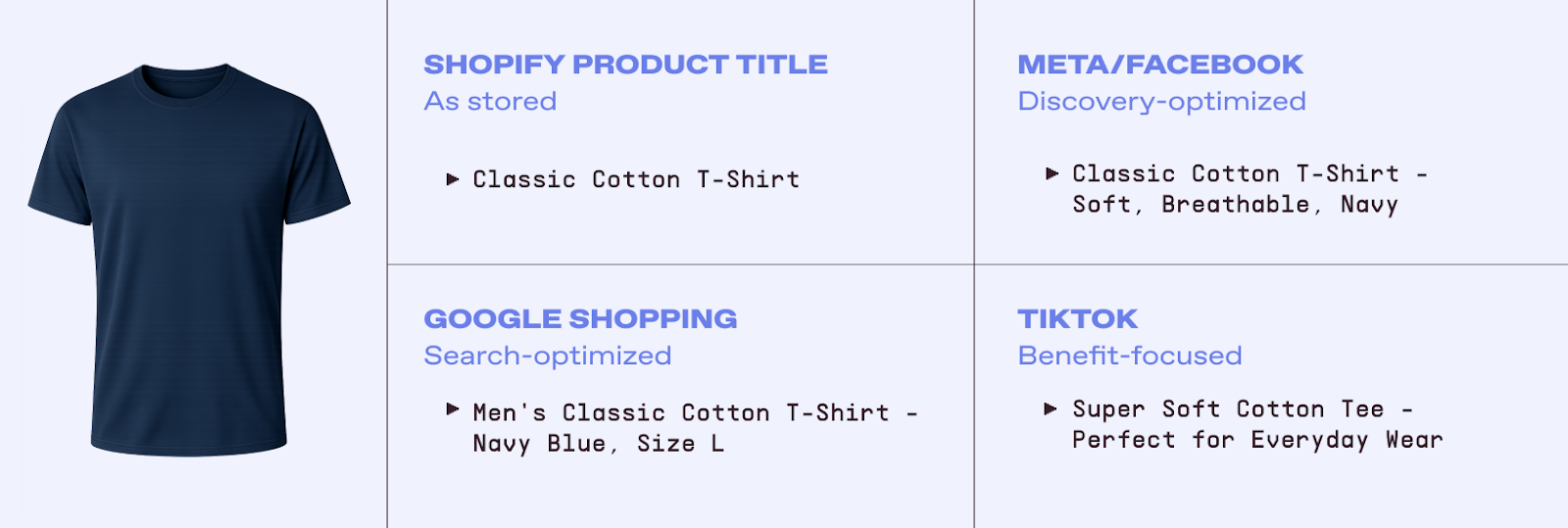
Your Shopify product title shouldn't be the same over and over again, across all advertising platforms you are using:
Shopify Product Title (as stored): "Classic Cotton T-Shirt"
Google Shopping (search-optimized): "Men's Classic Cotton T-Shirt - Navy Blue, Size L"
Meta/Facebook (discovery-optimized): "Classic Cotton T-Shirt - Soft, Breathable, Navy"
TikTok (benefit-focused): "Super Soft Cotton Tee - Perfect for Everyday Wear"
Advanced feed tools let you create platform-specific title templates without changing your actual Shopify product titles.
Handle Shopify Variants Correctly
Shopify's variant system (products with multiple options like size and color) really does need some careful handling in feeds:
Option 1: Export Each Variant Separately Every combination becomes a unique feed item:
id: TSHIRT-BLK-S
title: Cotton T-Shirt - Black, Small
price: 19.99
image: tshirt-black-small.jpg
id: TSHIRT-BLK-M
title: Cotton T-Shirt - Black, Medium
price: 19.99
image: tshirt-black-medium.jpg
Best for: Google Shopping, Meta catalog ads:provides maximum control and targeting precision.
Option 2: Use Parent Product with item_group_id Group variants under a parent product:
item_group_id: TSHIRT-001
id: TSHIRT-BLK-S
title: Cotton T-Shirt
color: Black
size: Small
Best for: Platforms with strong variant handling (Google Shopping, Meta).
Leverage Shopify's Product Metafields
Shopify metafields allow you to add custom data to products that isn't part of the default product fields:
Useful metafields for feed optimization:
- custom.gtin : Add GTINs not captured in default fields
- custom.margin_level : High, Medium, Low for bidding strategy
- custom.season : Winter, Summer, Holiday, Year:Round
- custom.performance_tier : Best Seller, New, Standard, Clearance
Quality feed apps and platforms can pull metafield data into your advertising feeds, enabling sophisticated segmentation strategies.
Add Missing Product Identifiers
Many Shopify stores don't capture GTINs (UPCs, EANs, ISBNs) during initial product setup, but most advertising platforms require them:
Solutions:
- Add GTIN data to Shopify using metafields
- Use feed apps that allow adding GTINs at feed level
- For custom/handmade products, include identifier_exists= false in feed
Optimize Product Images
Shopify supports multiple product images. Use them effectively:
- Primary image: Should show product clearly on clean background
- Additional images: Multiple angles, detail shots, lifestyle images
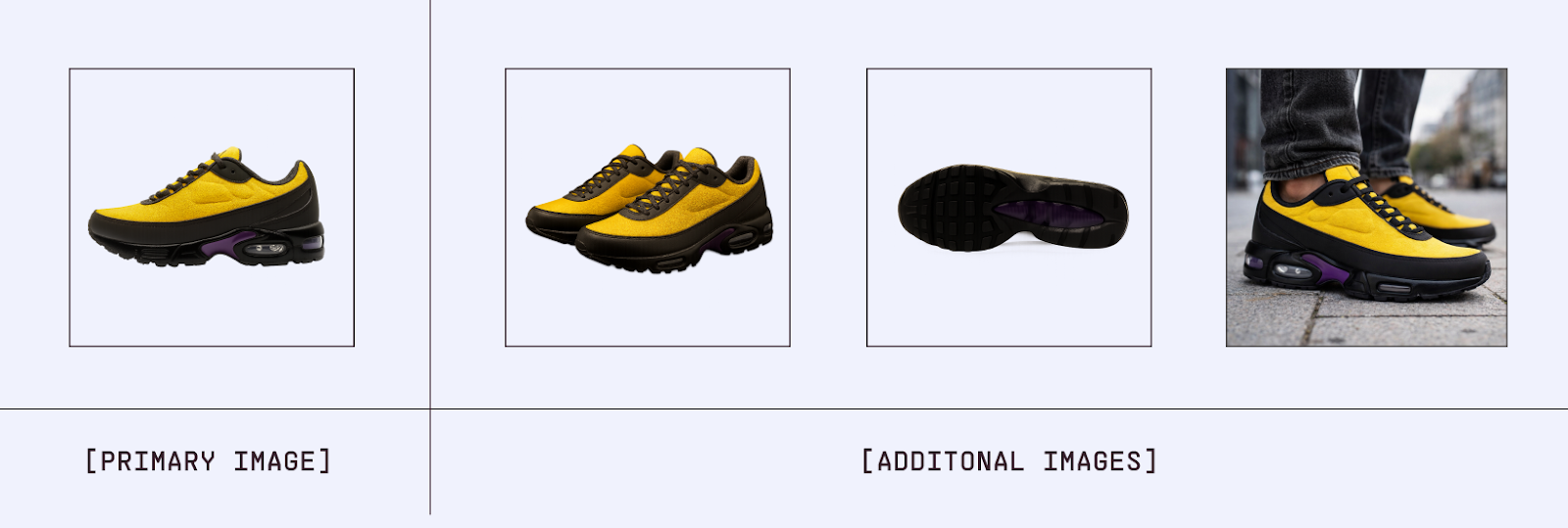
Image Best Practices:
- Minimum 800 x 800 pixels (1200+ recommended)
- Use consistent backgrounds and lighting
- Square images (1–1) work best for social platforms
- Compress for fast loading without sacrificing quality
- Name image files descriptively
Create Custom Labels for Campaign Segmentation
Custom labels are the secret weapon for advanced catalog ad strategies:
Strategic Custom Label Uses:
By Margin:
- High Margin (50%+)
- Medium Margin (30–50%)
- Low Margin (<30%)
Bid more aggressively on profitable products.
By Performance:
- Best Seller (top 20% by revenue)
- New Arrival (added in last 30 days)
- Slow Mover (bottom 20% by revenue)
Scale winners, test new products, clear slow inventory.
By Seasonality:
- Holiday, Summer, Winter, Year:Round
Adjust budgets seasonally.
By Inventory:
- Overstock, Limited Stock, Plenty
Promote excess inventory, cap spend on low stock.
Native Shopify integrations don't support custom labels well, this is where feed management tools shine.
Common Shopify Feed Errors and Solutions
Error: "Shopify:Meta Integration Sync Failed"
Cause: Connection issues between Shopify and Meta Commerce Manager.
Fix:
- Reinstall the Facebook & Instagram channel
- Verify Facebook Business Manager permissions
- Check product approval status in Commerce Manager
- Try using a dedicated feed tool instead of native integration
Error: "Price Mismatch on Google Shopping"
Cause: Price in feed doesn't match price on landing page.
Fix:
- Ensure Shopify product prices are current
- Check for currency conversion issues
- Verify no conflicting price apps or scripts
- Confirm Google is crawling the correct product URL
Error: "Missing GTIN for Product"
Cause: Product lacks required GTIN (UPC/EAN/ISBN).
Fix:
- Add GTINs to Shopify products via metafields or barcode field
- Use feed app to add GTINs at feed level
- For custom products, include identifier_exists= false
Error: "Image Can't Be Downloaded"
Cause: Product images aren't accessible to advertising platforms.
Fix:
- Verify images aren't password:protected
- Check image URLs load in incognito browser
- Ensure Shopify store isn't in password:protected mode
- Use HTTPS image URLs (not HTTP)
Error: "Product Variant Not Showing"
Cause: Variants not properly separated in feed or missing required attributes.
Fix:
- Ensure feed includes all variants as separate items
- Add variant:specific attributes (size, color, etc.)
- Check variant has valid price and availability
- Verify variant has unique ID in feed
Multi-Platform Advertising with Shopify
You don’t see the most successful Shopify stores advertising on only one platform. If you are one of them, you're likely running ads across:
- Google Shopping (highest intent traffic)
- Meta (Facebook/Instagram : massive reach)
- TikTok (rapidly growing, younger demographics)
- Pinterest (high:intent visual discovery)
- Snapchat (younger, trend-conscious audience)
Each platform has different requirements, optimization strategies, and feed formats. Managing this complexity is challenging with Shopify's native tools alone.
The Multi-Platform Feed Strategy
Smart Shopify brands use this approach:
- Centralize product data in one feed management system
- Organize and enrich products with custom labels, categories, and optimizations
- Generate platform-specific feeds automatically with the right formatting
- Deploy to all platforms from one dashboard
- Track performance across platforms to optimize spend
This approach saves time, reduces errors, and improves performance by allowing platform-specific optimization without managing separate feeds manually.
Marpipe's feed management platform makes this seamless for Shopify stores:and it's 100% free. Connect your Shopify store just once. Organize your products (do not forget the custom labels), generate optimized feeds for Google, Meta, TikTok, Pinterest, and any other platforms you want.
Beyond Feed Management: Enriched Catalog Ads
Having an optimized product feed is essential, but how your products appear in ads matters just as much. Most Shopify stores run "raw" catalog ads: plain product photos on white backgrounds with auto-generated copy.
The Problem with Raw Catalog Ads
Raw catalog ads:
- Look generic and boring
- Don't reflect your brand identity
- Blend in with every competitor
- Underperform their potential
The Power of Enriched Catalog Ads
Enriched catalog ads transform your product feed into branded, beautiful advertisements:
- Branded backgrounds and design elements
- Dynamic text overlays (prices, discounts, product names)
- Seasonal and promotional variations
- Consistent brand expression across all SKUs
The magic? Create one template, and it automatically generates thousands of unique ads, one for each product in your feed.
Marpipe's Enriched Catalogs give Shopify stores complete creative control over their catalog advertising. Brands using enriched catalogs see an average 53% increase in ROAS compared to raw catalog ads.
Related product feed guides: Learn more about WooCommerce Product Feed, Magento Product Feed, Facebook Product Feed, and Amazon Product Feed.
Maximize Your Shopify Advertising Performance
Shopify gives you an incredible platform for running your e-commerce business. But to maximize advertising performance across Google, Meta, TikTok, and other platforms, you need more than Shopify's basic feed tools.
Marpipe helps Shopify brands take control of their entire catalog advertising strategy:
- Connect your Shopify store and sync products automatically
- Organize your catalog with our 100% free feed management platform
- Generate optimized feeds for Google, Meta, TikTok, Pinterest, and more
- Create enriched catalog ads that outperform generic product listings by 53%
- Scale across platforms without managing separate feeds manually
Ready to level up your Shopify catalog advertising? Start with Marpipe's free feed management platform or schedule a demo to see how we help Shopify brands maximize ROAS across all advertising platforms.
FAQS
Is the Shopify‑to‑Meta integration good enough for Facebook catalog ads?
It’ll get your products into Meta Commerce Manager, so yes, you can run basic catalog ads. But if you’re serious about scaling? It’s not enough. You can’t add custom labels, you can’t tweak data for Meta specifically, and you’re stuck with whatever Shopify spits out. That’s fine for testing, but once you’re spending real money, you’ll want a feed tool that gives you control.
How do I access my Shopify product feed?
Shopify automatically creates a super simple feed at:
https://yourstore.myshopify.com/products.xml
That’s the “starter pack.” It works, but it’s not optimized for ads. If you want feeds that actually perform, grab a feed app or a management platform. They’ll take your Shopify data and shape it into the format Google, Meta, TikTok, and others expect, so your ads don’t get flagged or underperform.
Can I use the same Shopify feed for Google Shopping and Facebook?
Technically, yes. Both platforms can read the same file format. But here’s the thing: Google and Meta don’t play by the same rules. Google cares about search intent and keywords; Meta cares about discovery and visuals. If you just blast one identical feed everywhere, you’re leaving money on the table. The smarter move is to let a feed tool tailor your data for each platform automatically.
How often should my Shopify product feed update?
At least once a day. That keeps your prices and inventory accurate enough for most stores. But if you’ve got fast‑moving products or you’re running promos, every few hours is better. The gold standard? Real‑time sync. That way, your ads always match what’s actually in stock. Nothing kills performance faster than advertising something that’s sold out.
Do I need Shopify Plus for advanced product feed management?
Nope. Even Plus stores hit the same walls when it comes to feeds. Third‑party tools work with every Shopify plan and unlock features Shopify doesn’t give you, like custom labels, advanced optimization, and multi‑platform control. So don’t think you need to pay for Plus just to get serious feed management.