

.jpeg)
Amazon product feeds are not the same as feeds used for Google Shopping, Meta, or other advertising platforms. On most platforms, feeds exist mainly to support catalog advertising. Amazon uses product feeds for a different purpose. They are used to manage product listings in bulk. This includes uploading products, updating existing listings, and keeping catalog data accurate on Amazon’s marketplace. It’s the basic work behind maintaining a catalog.
If, let’s say, your brand sells on Amazon and also runs a direct-to-consumer site, you have to understand how Amazon product feeds work. It’s essential. Without it, managing inventory and listings across multiple channels gets incredibly harder. Especially as more channels are added.
This guide covers how Amazon product feeds work for direct Amazon listings and for coordinating inventory across several platforms.
What is an Amazon Product Feed?
An Amazon Product Feed is a structured data file, most often tab-delimited text or XML. As simple as that. Now, it is used to upload and manage product listings in bulk through Amazon Seller Central or Amazon Vendor Central. This is important: unlike feeds used for Google or Meta advertising, Amazon feeds are designed for listing management rather than ad campaign setup.
Creating a product feed means building or updating your product catalog on Amazon. That includes creating listings in bulk, editing product information, updating inventory quantities, changing prices, and setting fulfillment options. Without feeds, all of this would need to be done manually in Seller Central. And you can imagine the mess once the catalog grows beyond a small number of SKUs.
The fields required in a feed depend on the product category. Basic identifiers such as ASINs, UPCs, EANs, or ISBNs are required. Titles, descriptions, images, pricing, inventory levels, and category-specific attributes are also needed. Let me give an example: apparel listings require color, size, and material. Electronics listings require dimensions and battery details. Each category has required fields that must be completed before a listing can go live.
Amazon also uses product catalog data to support advertising features like Sponsored Products, Sponsored Brands, and Amazon DSP. These tools pull information directly from existing listings. They do not rely on separate advertising feeds. So yes, feed quality affects both listing accuracy and advertising performance.
Amazon Feed Types
Amazon offers several feed types so sellers can update specific parts of their catalog without resubmitting everything each time.
The Product Feed is used to create or update full product listings. Titles, descriptions, images, prices, category data. That’s all handled here. The Inventory Feed updates stock levels and fulfillment details and is useful when inventory changes often. The Price Feed handles pricing updates, such as promotions or competitive changes. The Image Feed allows image updates without modifying other data. The Relationship Feed manages parent-child relationships for variations like size or color.
Category-specific feeds exist because different product types require different information. Clothing feeds include size charts and materials. Electronics feeds include technical specifications and battery information. Home goods feeds require dimensions. Beauty products require ingredient lists. Each category has its own template based on these requirements.
How Amazon Product Feeds Differ from Advertising Feeds
If you manage Amazon listings alongside advertising on other platforms, the difference between these feeds actually matters. The distinction comes down to what they are used for.
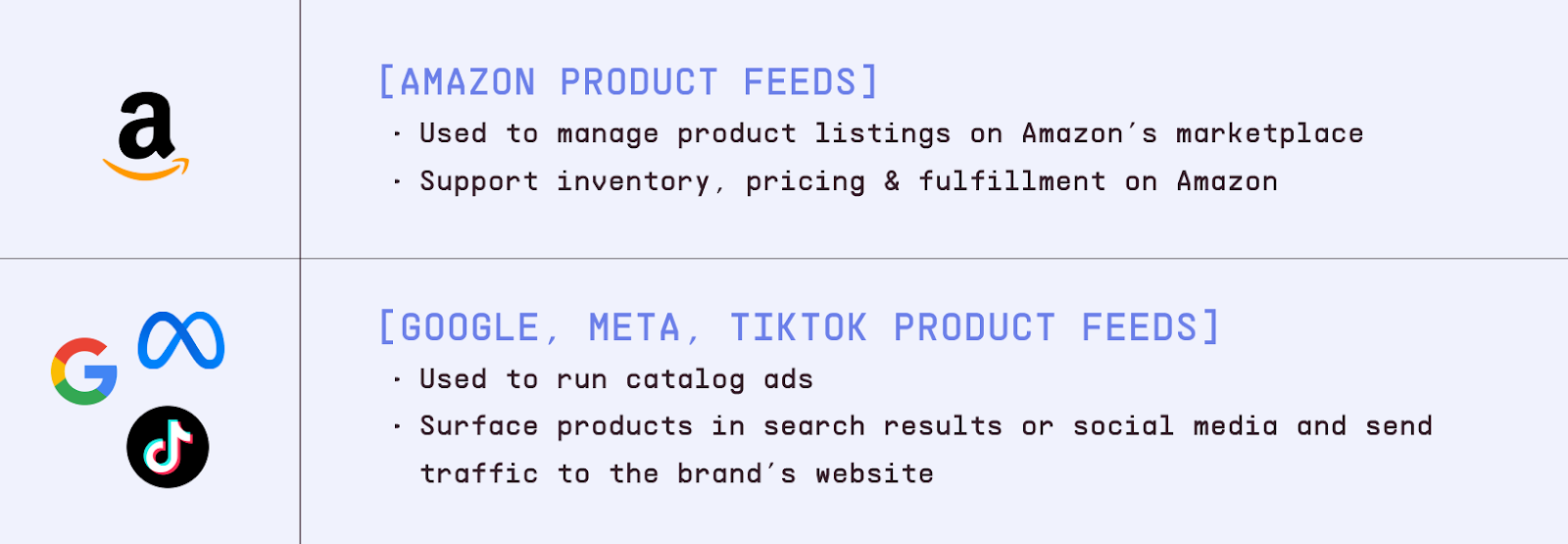
Amazon feeds are used to manage product listings within Amazon’s marketplace. They support inventory, pricing, and fulfillment as part of selling on Amazon. Advertising feeds for platforms like Google, Meta, or TikTok are used to run catalog ads. Those feeds surface products in search results or social media and send traffic to a brand’s own website.
And as you can imagine, yes Amazon feed requirements are strict and standardized. They rely on Amazon-specific identifiers, category templates, and fulfillment data. Advertising feeds are more flexible. They focus on elements that influence ad performance, such as images, copy, and custom labels used for segmentation.
How to Create an Amazon Product Feed
Step 1: Determine Your Feed Requirements
Before creating a feed, identify:
- Which Amazon marketplace (US, UK, EU, etc.)
- Product categories you're selling in
- Whether you're using FBA (Fulfilled by Amazon) or FBM (Fulfilled by Merchant)
- Volume of products (affects whether bulk feeds are necessary)
Step 2: Download Amazon's Template
Amazon provides category-specific templates:
- Log into Amazon Seller Central
- Navigate to "Inventory" > "Add Products via Upload"
- Download the appropriate template for your category
- Review required vs. optional fields
Important: Each product category has different required attributes. Using the wrong template will result in errors.
Step 3: Format Your Product Data
Fill in Amazon's template with your product information:
Essential Fields:
- sku - Your internal product identifier
- product-id - ASIN (if updating existing) or UPC/EAN/ISBN (if creating new)
- product-id-type - Type of identifier (ASIN, UPC, EAN, ISBN, etc.)
- item-name - Product title (up to 200 characters, but 80-100 recommended)
- brand-name - Manufacturer or brand
- manufacturer - Product manufacturer
- item-type - Amazon's classification
- standard-price - Your price
- quantity - Available inventory
- main-image-url - Primary product image
- product-description - Detailed description
Category-Specific Fields: Vary by category but often include:
- Color, size, material
- Dimensions and weight
- Battery information (electronics)
- Age range (toys, clothing)
- Ingredients (beauty, food)
Step 4: Validate and Upload
- Complete all required fields
- Validate data format matches Amazon requirements
- Save as tab-delimited text (.txt) or Excel format
- Upload via Seller Central "Add Products via Upload"
- Wait for processing (typically 15-45 minutes)
- Review processing report for errors
Step 5: Address Errors
Amazon's processing report shows:
- Successfully processed products
- Errors preventing listing creation
- Warnings that should be addressed
Common errors include:
- Missing required attributes
- Invalid product identifiers
- Incorrect category classification
- Image URL issues
- Price format errors
Amazon Feed Management Tools and Services
Amazon includes built-in tools inside Seller Central, like templates, bulk upload options, and error reports. For smaller catalogs, or catalogs that don’t change very often, these tools usually do the job.
If you need something more advanced, there’s the Selling Partner API. It allows programmatic feed management with near real-time updates. This setup takes more technical work, but it gives you more control over ongoing changes. This option requires technical resources to implement.
Third-party platforms also manage feeds across Amazon and other channels. Feedonomics supports enterprise-level feed optimization. DataFeedWatch focuses on feed optimization and automated updates with lower entry pricing. ChannelAdvisor provides broader marketplace management, including inventory synchronization and advertising integration. Listing Mirror focuses on syncing inventory across multiple marketplaces.
E-commerce platforms can also simplify setup. Shopify’s Amazon channel syncs products and inventory automatically. WooCommerce and Magento offer plugins and extensions that support Amazon feed management and multi-marketplace synchronization.
Multi-Channel Product Feed Strategy
Brands that sell on Amazon and through their own channels often manage several feed formats at the same time. Amazon, Google Shopping, Meta, TikTok, and Pinterest all have different requirements and optimization approaches.
Many brands maintain a single master product catalog as their source of truth. Feed management tools then generate platform-specific feeds from that catalog. Inventory synchronization ensures stock changes are reflected everywhere, which helps prevent overselling. A unified dashboard can make it easier to manage multiple channels without separate systems.
This approach reduces errors, saves time, and improves inventory accuracy while supporting more advanced optimization workflows.
Marpipe’s feed management platform is designed to help brands coordinate product feeds across Amazon and other platforms from one system, at no cost.
Amazon Product Feed Best Practices
Optimize Product Titles for Amazon Search
Product titles should be clear and descriptive. Titles between 50 and 80 characters generally display well. Effective titles include the brand name, product type, and key features customers search for. Important keywords should appear early, without keyword stuffing. Amazon style guidelines vary by category and should be followed to avoid listing issues.
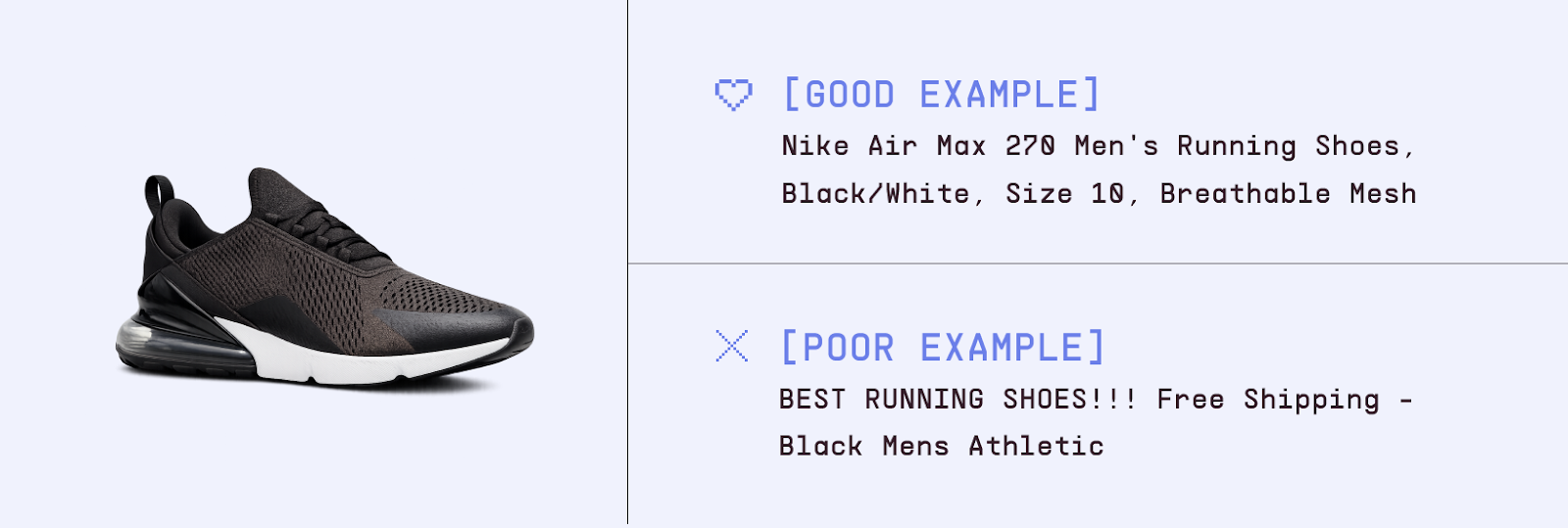
Good example: "Nike Air Max 270 Men's Running Shoes, Black/White, Size 10, Breathable Mesh." Poor example: "BEST RUNNING SHOES!!! Free Shipping - Black Mens Athletic" (violates guidelines with promotional language and all caps).
Use High-Quality Product Images
Amazon has strict image requirements. The main image must have a white background, show only the product, and be at least 1000 pixels on the longest side to enable zoom. Additional images should show different angles, highlight features, and show the product in use. Image quality has a direct impact on conversion rates.
Keep Inventory Synchronized
Out-of-stock listings frustrate customers and can harm seller performance metrics. Inventory feeds should be updated frequently, at least once per day. Real-time synchronization and safety stock buffers help reduce the risk of overselling, especially when using both FBA and merchant fulfillment.
For sellers using FBA, a third-party prep service like eFulfillment Service can help ensure inventory is properly prepared and labeled before it reaches Amazon's fulfillment centers, reducing delays and compliance issues.
Match Pricing Across Channels
Customers often compare prices across platforms. If you sell on Amazon and your own website, price differences can affect trust. Monitor pricing while accounting for Amazon fees and coordinate promotions so prices remain consistent.
Leverage Amazon’s A+ Content
A+ Content allows enhanced product pages with richer images, comparison charts, and more detailed feature descriptions than the standard product description. This is especially useful for complex products and often improves conversion rates.

Amazon Product Feeds for Advertising
Amazon feeds are mainly used for listing management, but product catalog data also supports Amazon’s advertising tools.
Sponsored Products ads use information directly from listings, including titles, images, pricing, and reviews. Sponsored Brands campaigns feature multiple products with custom headlines and branding. Amazon DSP uses catalog data to support display advertising across the web. Listing quality affects performance across all of these formats.
Coordinating Amazon with DTC Catalog Advertising
Brands that sell on Amazon and through their own websites need careful coordination. Inventory must be synchronized to avoid overselling. Many brands allocate inventory by channel and update feeds when availability changes.
Pricing strategy also matters. Brands need to decide whether pricing should remain consistent across channels or vary to account for platform fees. Advertising DTC products at prices lower than Amazon listings can frustrate customers and harm seller reputation.
Not every product performs well on every channel. Some categories on Amazon are highly competitive and may not align with brand goals. Custom labels in advertising feeds can help separate Amazon products from DTC-only products.
When running catalog ads across platforms, budget allocation should reflect margins and overall strategy. Google and Meta ads usually drive traffic to owned websites. Amazon ads reach shoppers on the marketplace and include platform fees.
Streamline Your Multi-Platform Product Feed Strategy
Managing product feeds across Amazon, Google, Meta, TikTok, and Pinterest becomes more complex as channels are added. Each platform has its own formatting rules and operational requirements.
Marpipe provides a centralized way to manage product catalogs as a single source of truth. The platform supports data organization, custom labeling, and platform-specific feed generation for multiple advertising channels. Real-time inventory synchronization helps prevent advertising products that are out of stock.
Our feed management platform is 100% free, making it easy to coordinate feeds across all your advertising platforms without additional costs. No per-product fees, no usage limits, and no hidden catch—just professional feed management that scales with your business.
For brands looking to maximize catalog advertising performance, Marpipe's enriched catalog ads have driven an average 53% ROAS increase compared to standard product feed ads. By giving you complete creative control over how your products appear in catalog ads, we help you stand out in crowded feeds and convert more browsers into buyers.
Ready to streamline your product feed management? Start with Marpipe's free platform or schedule a demo to see how we help brands maximize multi-platform catalog advertising performance.
Looking for more feed guidance? Check out our articles on Product Feed Example, WooCommerce Product Feed, Shopify Product Feed, and Instagram Product Feed.
Frequently Asked Questions
What’s the difference between an Amazon product feed and a Google Shopping feed?
Amazon product feeds are used to manage listings on Amazon’s marketplace. Google Shopping feeds are used for catalog advertising and drive traffic to your own website. One supports marketplace management, the other supports paid promotion.
Do I need an Amazon product feed if I only sell a few products?
For small catalogs, listings can be created manually through Seller Central. Feeds become more useful as catalogs grow or when bulk updates are needed.
Can I use the same product feed for Amazon and other advertising platforms?
No. Amazon feeds use a different structure than advertising feeds. A single master catalog can support multiple feeds, but each platform requires its own format.
How do I add ASINs to my product feed?
For new products, ASINs are assigned by Amazon after approval. For existing listings, include the ASIN as the product-id and set the product-id-type to ASIN.
Should Amazon feeds be managed separately from advertising feeds?
Amazon marketplace feeds should be managed separately because they serve a different purpose. Using a centralized product catalog as the source for all feeds helps maintain consistency and reduces manual effort